Appearance
Email and password
Create an account
- Choose Create an account on the sign-in page. Enter your work email and password.
- Complete the requested name, country, intended use and terms. If required, enter your invite code or request access.
- Verify your address using the emailed link. Return to the pending page and use I've verified — continue if it has not continued automatically. Use Resend the email for an expired or missing message and use the newest link.
Sign in
Enter Work email, select Continue, enter Password and choose Sign in. Change lets you correct the email. If organization SSO is offered, follow that path instead.
Reset or change your password
Choose Forgot password?, enter your email and use Send reset link. Open the reset email, set a new password and sign in. Check spam and the address if no message arrives. The same flow changes a forgotten or existing password. See recovery if it fails.
Visual guide: set up your account
English screen, translated caption. No account was created and no email was sent; signed-in examples use fictional demo data. A displayed form is not proof of completed authentication, verification or membership.
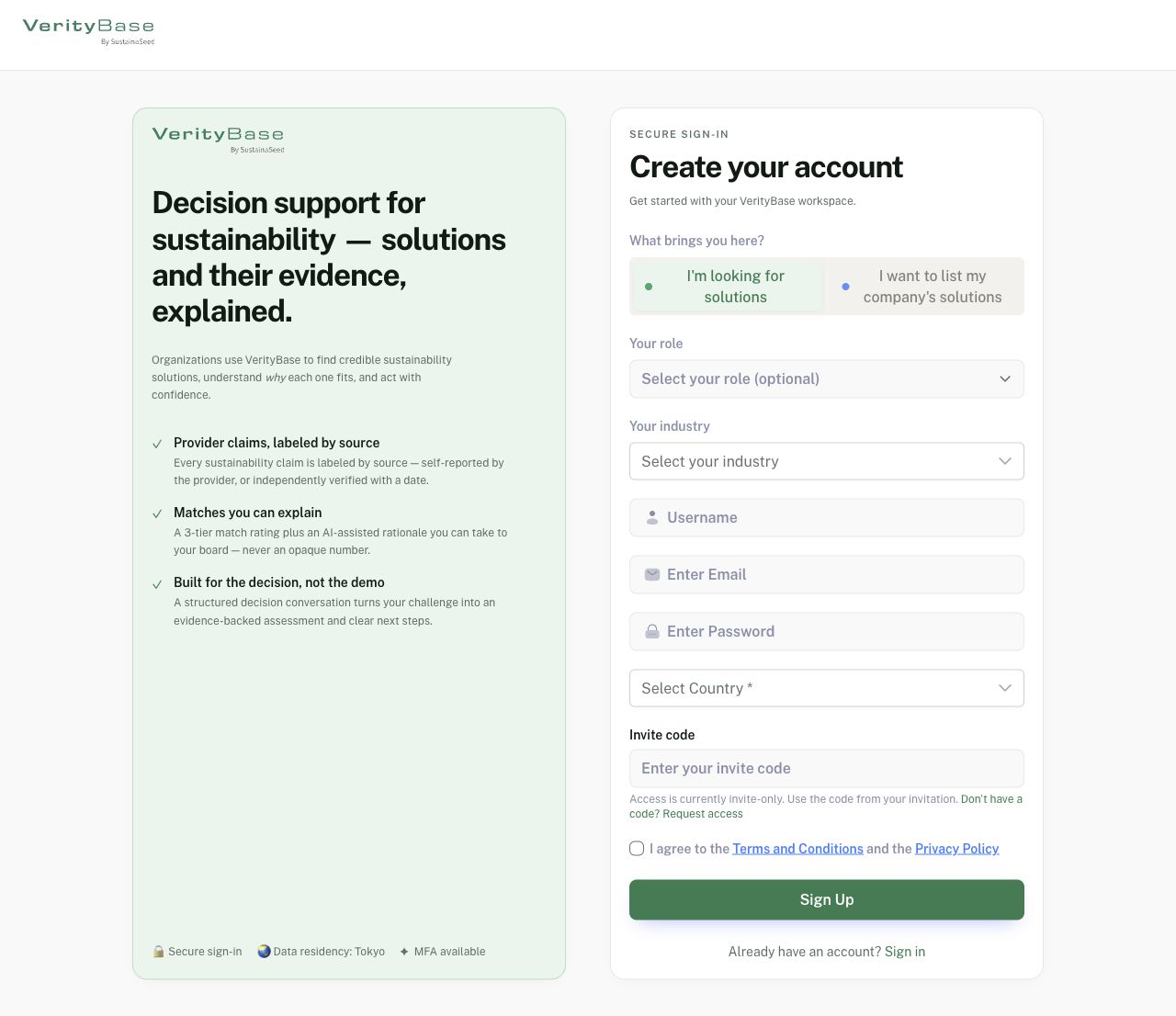
Seeker intent shows optional role and industry before personal details.
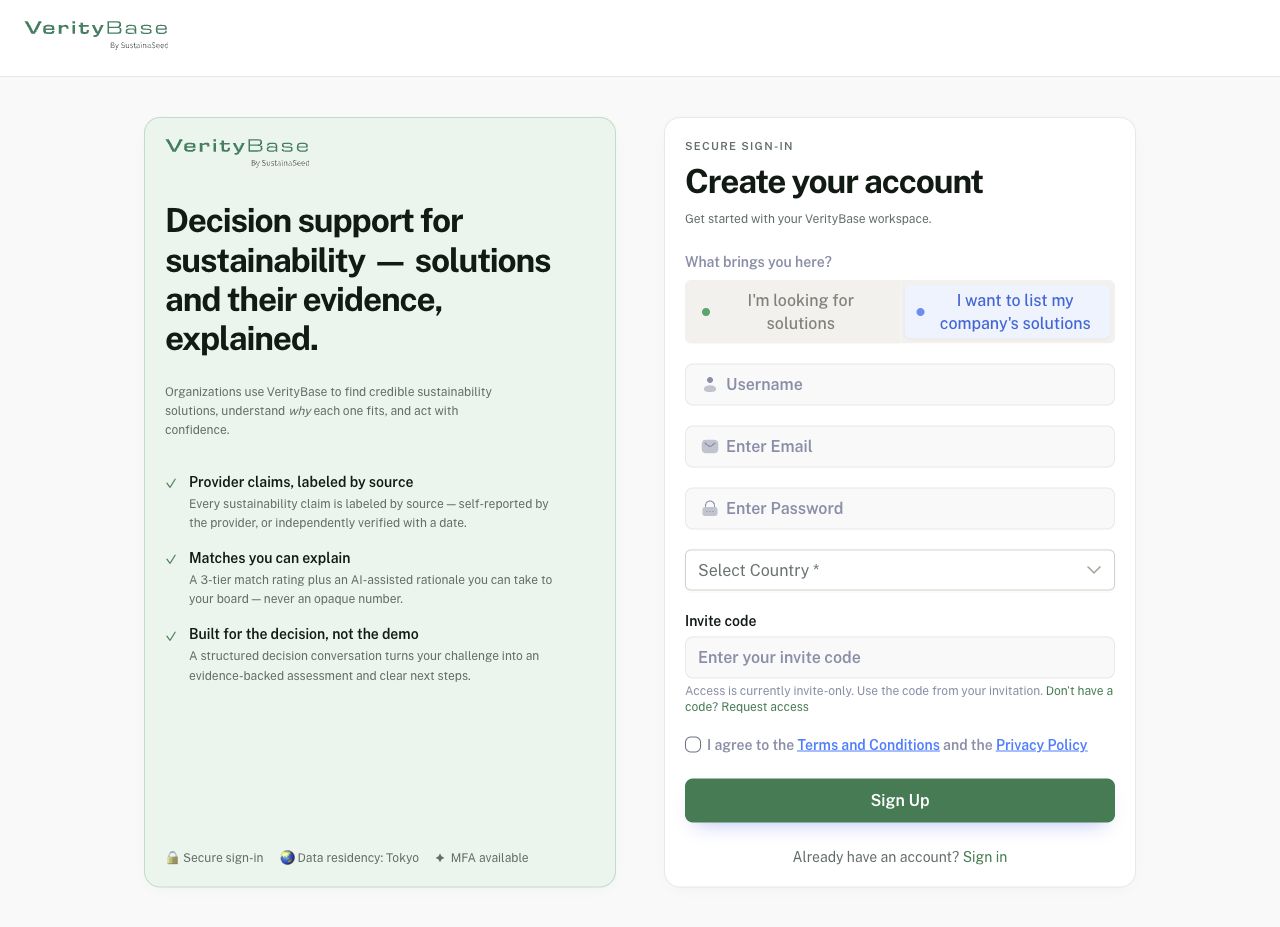
Provider intent hides the buyer role and industry fields.
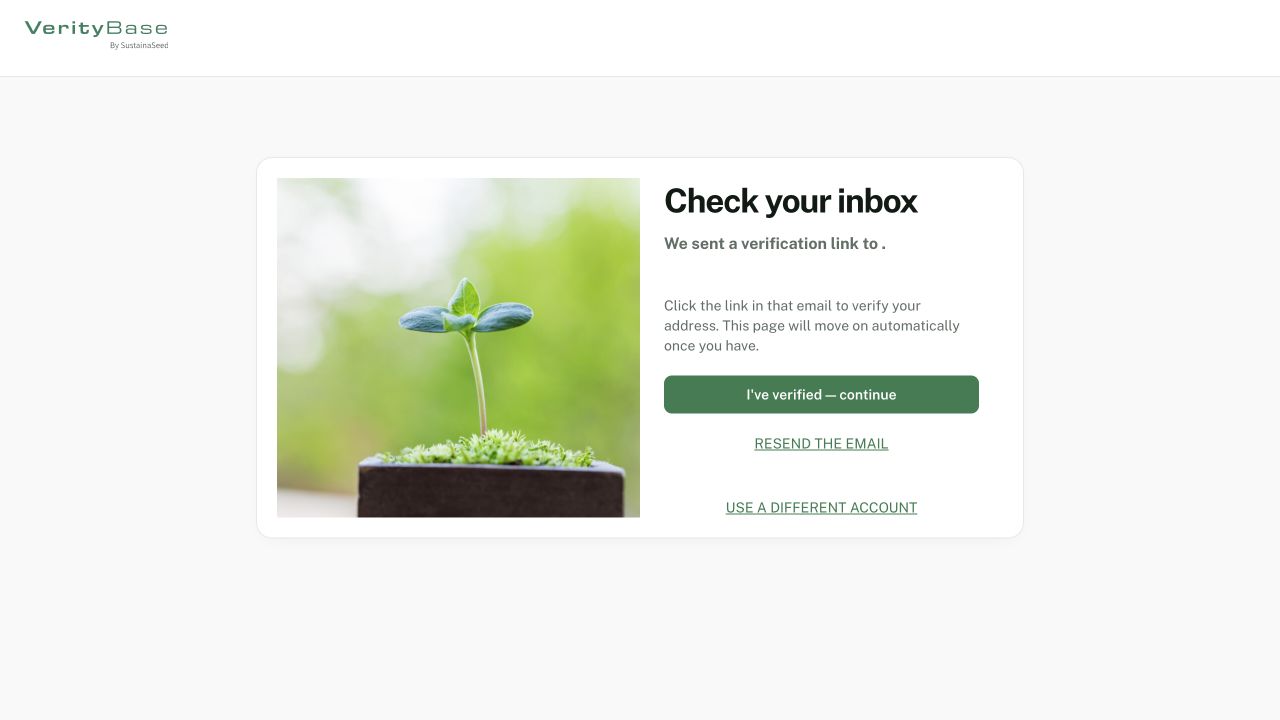
Verification controls shown without a signup session; no address or email dispatch.
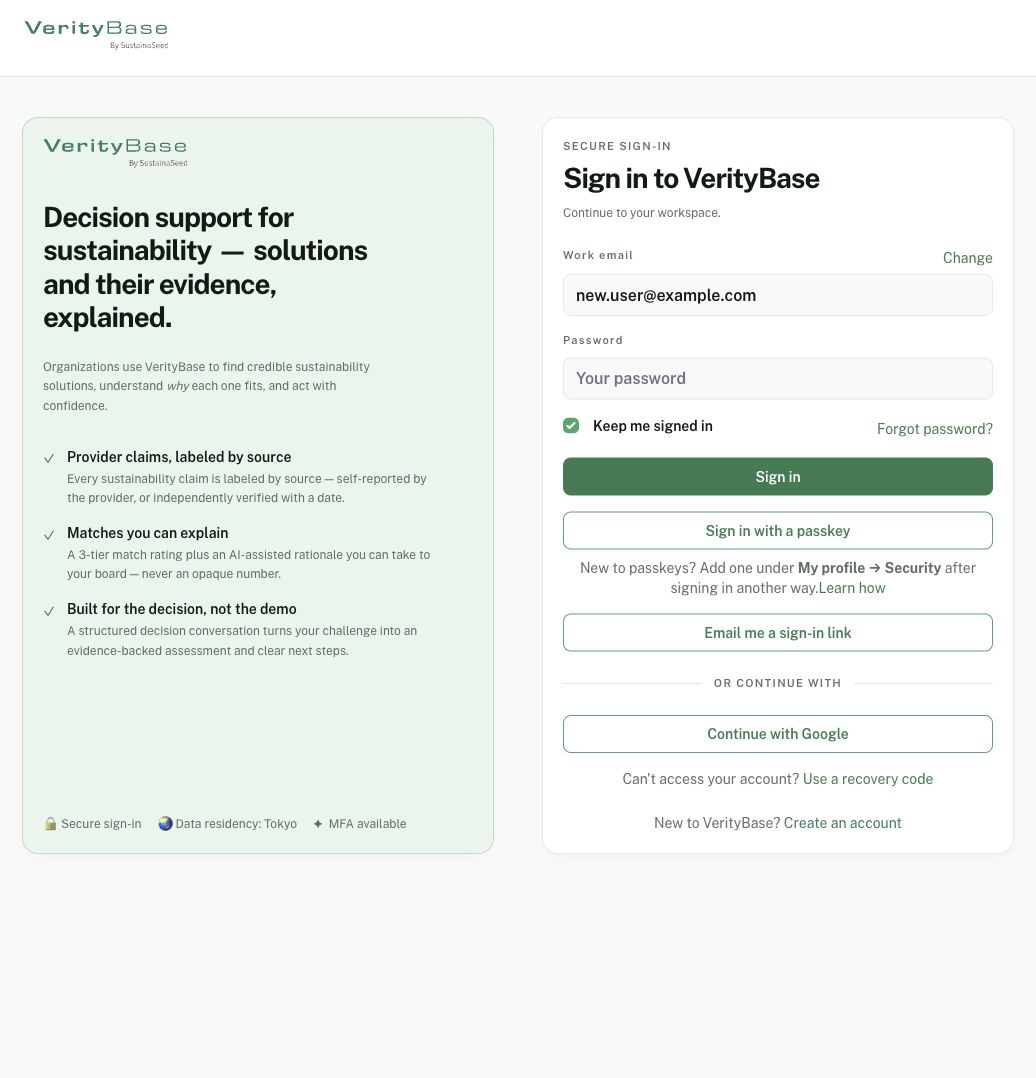
The password step uses a fictional address; the password is blank.