Appearance
Worked example: a warehouse heating pilot
Real screens from a fictional demo, captured 16 October 2026. Names, company facts, prices and results are training data. Screens are in English; the instructions and captions below explain the same journey. Your answers can produce different questions and readings. No inquiry, invitation, purchase or installation is made in this example.
The header logo failed to load in captures 2–4 of this local demo; the question controls are intact.
1. Check the building
Open Portfolio, then Bayside Logistics Warehouse. Review its area, location and equipment. This example has no equipment on record and an incomplete address: collect those facts before using a heating estimate. The displayed legal cards are demo output, not a determination for your building.
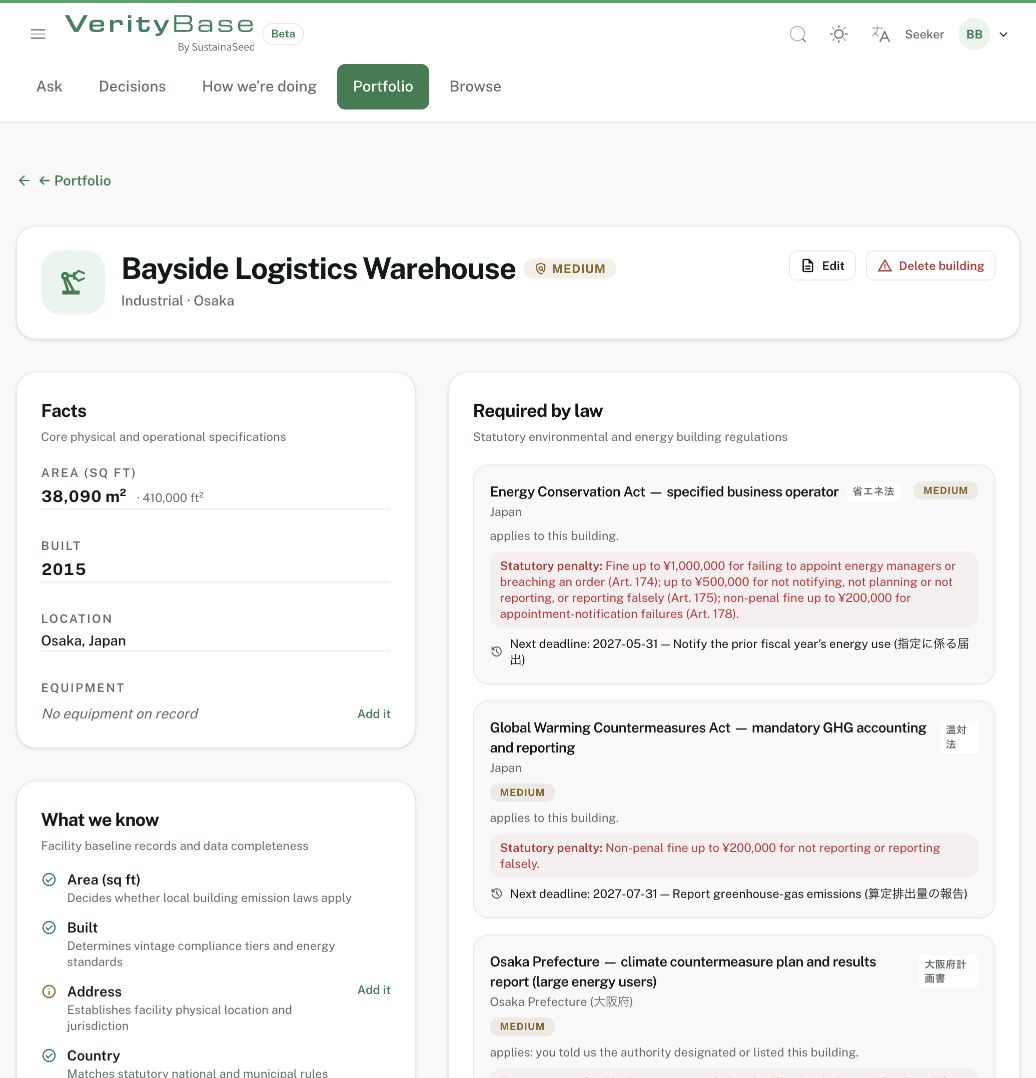
Bayside facts: no equipment recorded and the address still incomplete.
2. Ask a concrete question
Ask
Open Ask, enter “Should we replace the gas heaters at Bayside Logistics Warehouse with heat pumps?” and submit. Name the site and the proposed change so the question has a clear boundary.
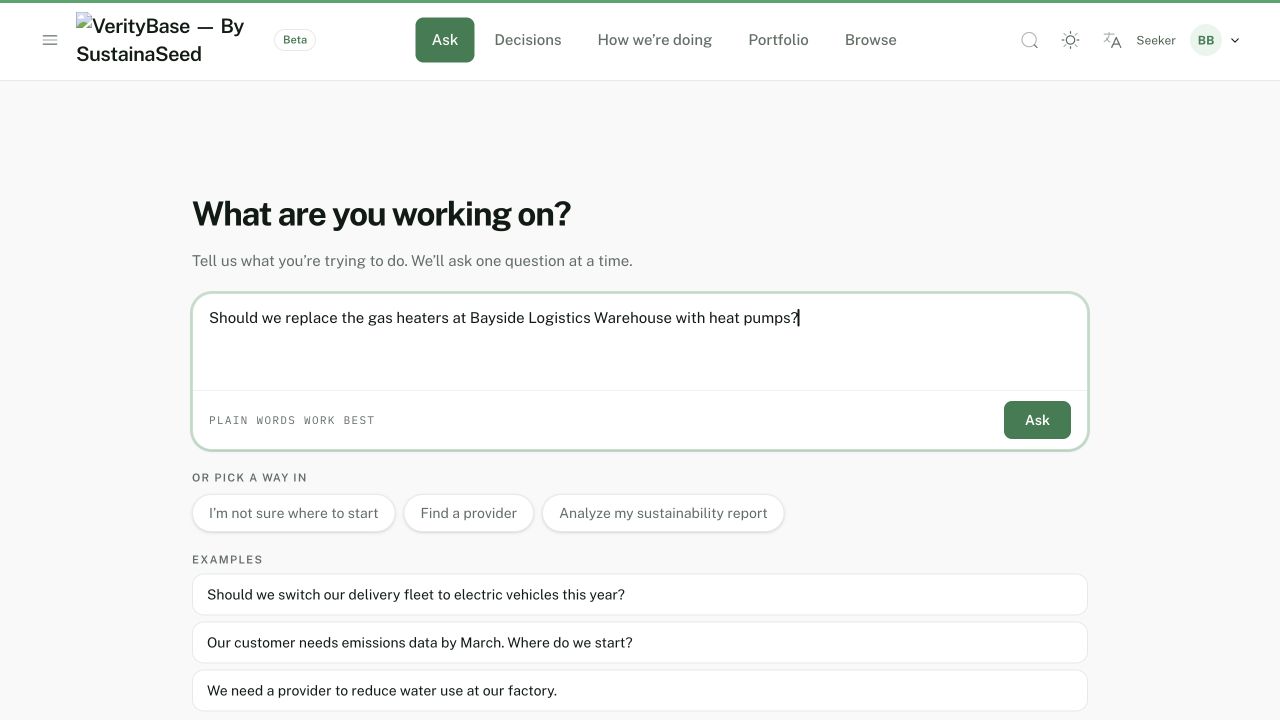
The question names the warehouse and the proposed heat-pump change.
3. Answer the framing questions
Choose this financial year, cost pressure, cost reduction and risk reduction, exploring, and a site or facility. Set the site to Bayside and choose cutting energy or resource costs. The example has informal targets. Use the unknown answer for facts you cannot support; do not guess emissions or overseas operations. Questions and their count can change as you answer.
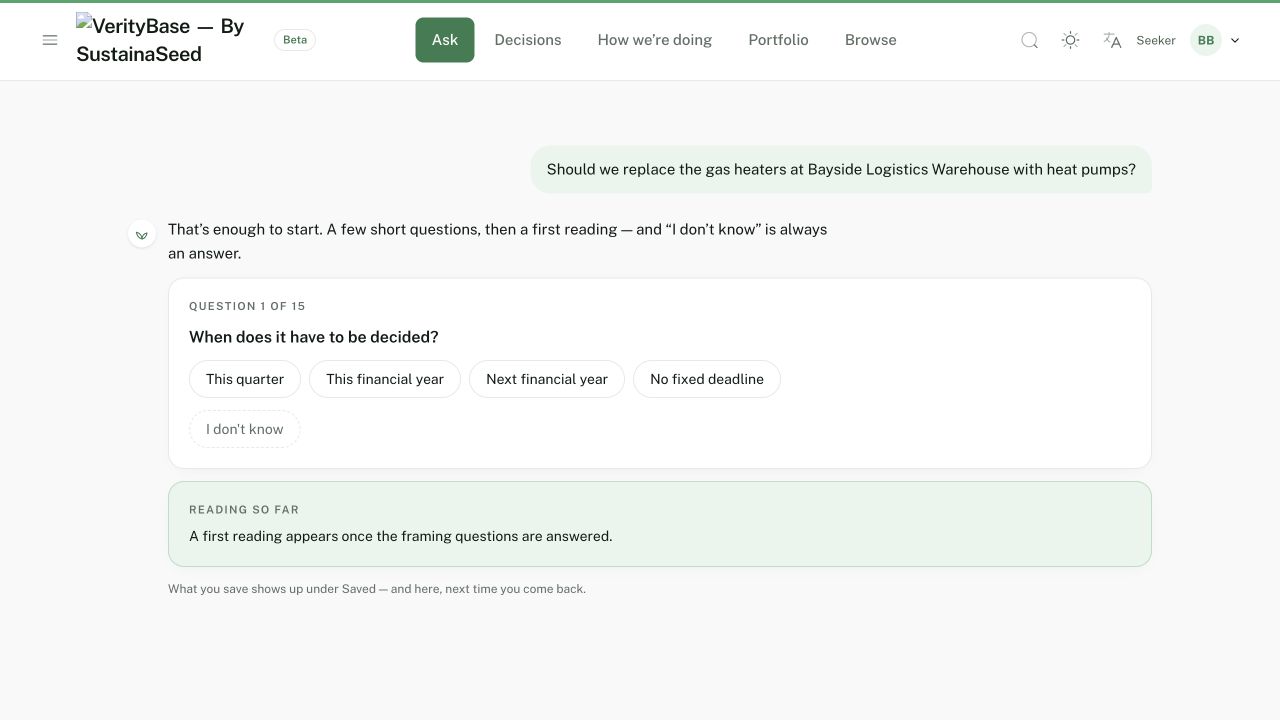
The first framing question asks when a decision is needed.
4. Define success
Open the full record → Save → Assess now
For this fictional company, the example assumes profitable, mid-size and a reputation ambition. Define success as: “Reduce heating energy use without interrupting warehouse operations; verify comfort, capacity and costs before approving a wider rollout.” In the full record, select limited budget, integration with current systems and data availability as constraints. Save, then run the assessment.
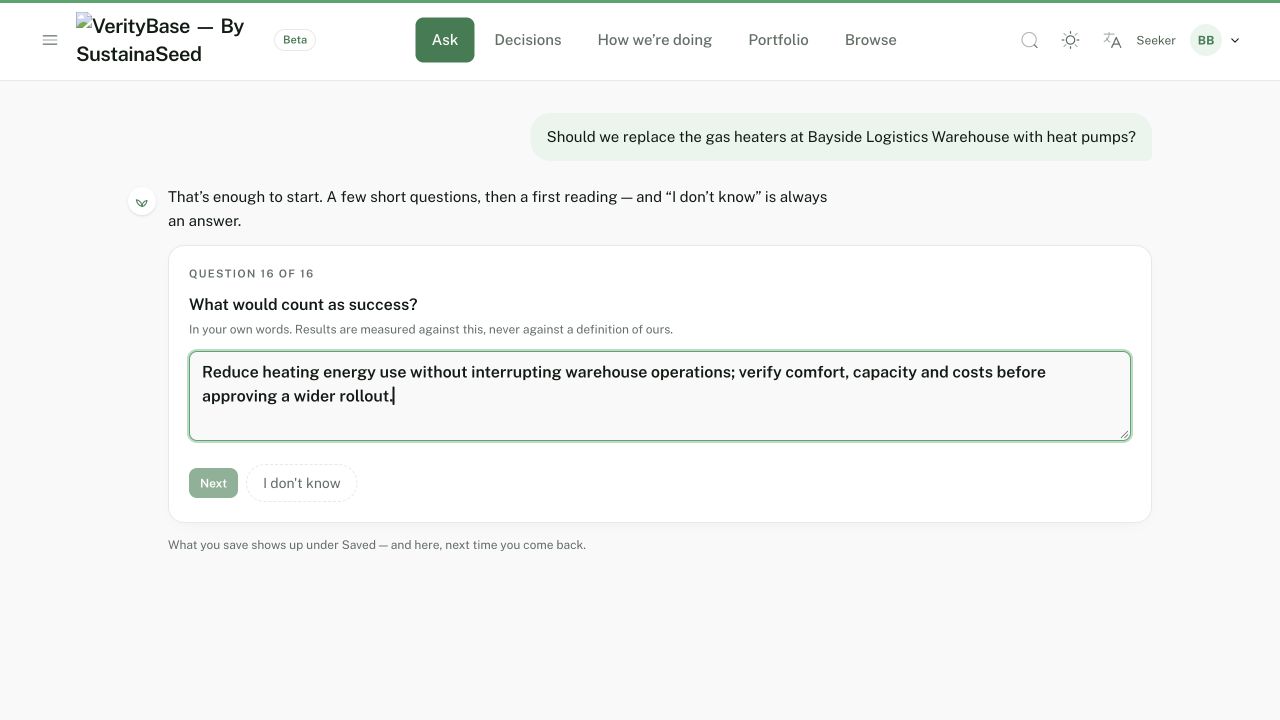
Success includes uninterrupted operations and checks before expansion.
5. Read the assessment
The actual reading is Prepare, as a pilot. Law and cost of waiting are Unknown. “8 of 8” answered does not mean all company facts are known: seven legal questions remain unknown. The screen explicitly says materiality is not assessed in v1 and no plan has been worked out. Add missing facts and reassess; do not treat this reading as approval to install.
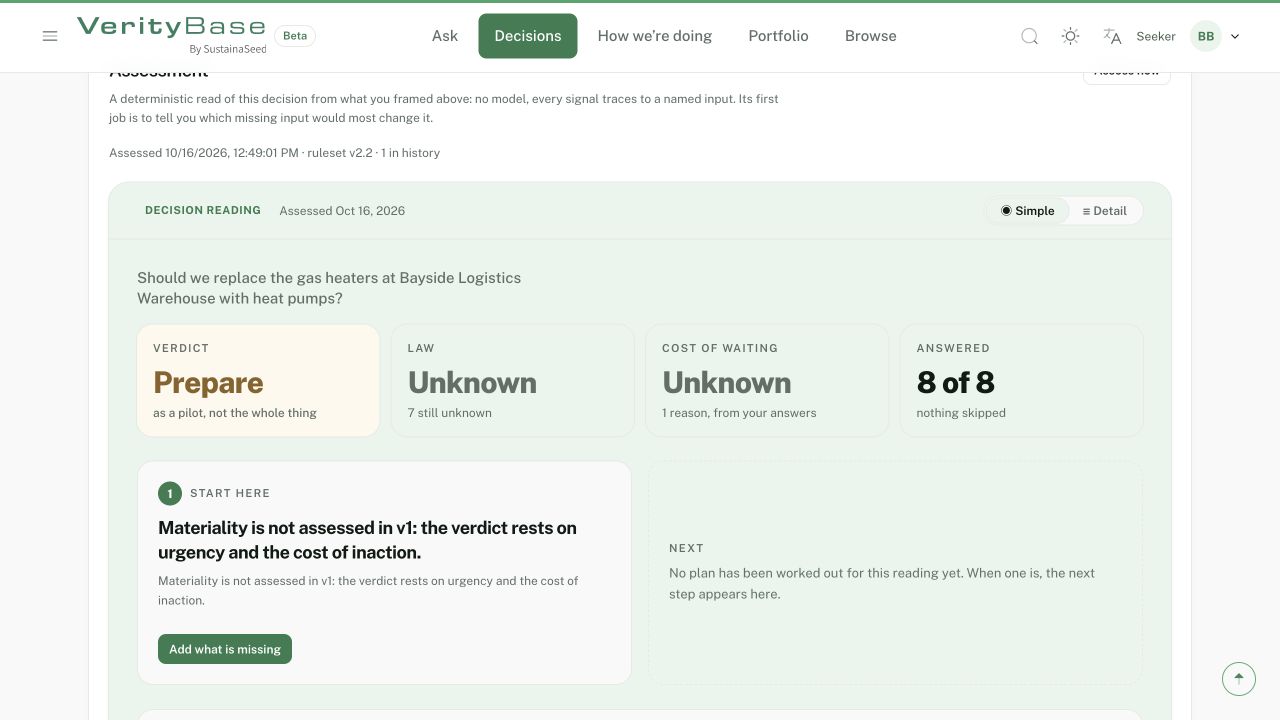
Prepare for a pilot; legal applicability and cost of waiting remain unknown.
6. Check provider relevance
Browse
Open Browse and inspect Hikari Thermal Engineering. Its profile describes industrial furnaces and fuel-switching studies. A verified badge does not establish suitability for warehouse heat pumps. Check service coverage, relevant references, electrical capacity, winter demand, disruption and a comparable quote before adding a real candidate.
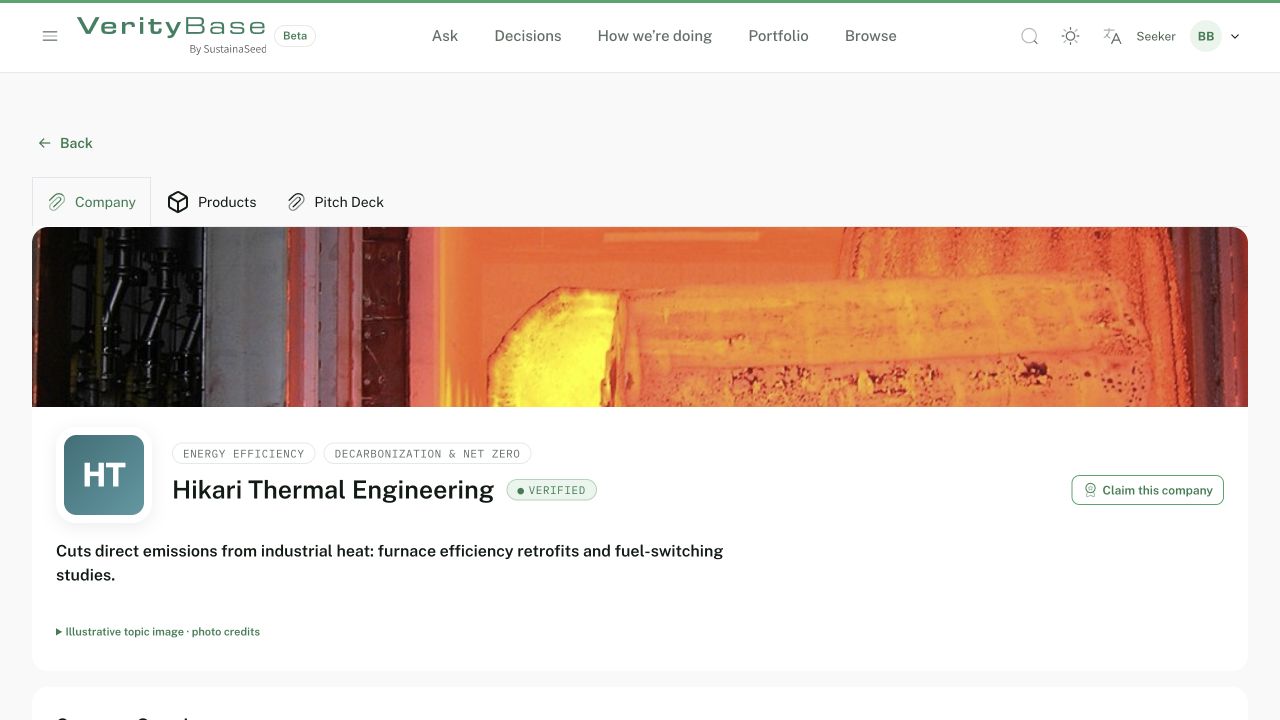
Hikari describes industrial heat services; warehouse suitability still needs evidence.
7. Compare without choosing a winner
From Solutions, use the compare link; add another from the saved library. The screen compares Data Center Waste-Heat Recovery and EnergyPulse Enterprise. These illustrate the comparison controls, not a suitable installer shortlist: neither record establishes the required warehouse service. Compare stage, region, pricing and evidence. Match strength and generated explanations do not establish quality; demo explanations and prices are sample data. Leave the project candidate list empty until a suitable offering is evidenced.
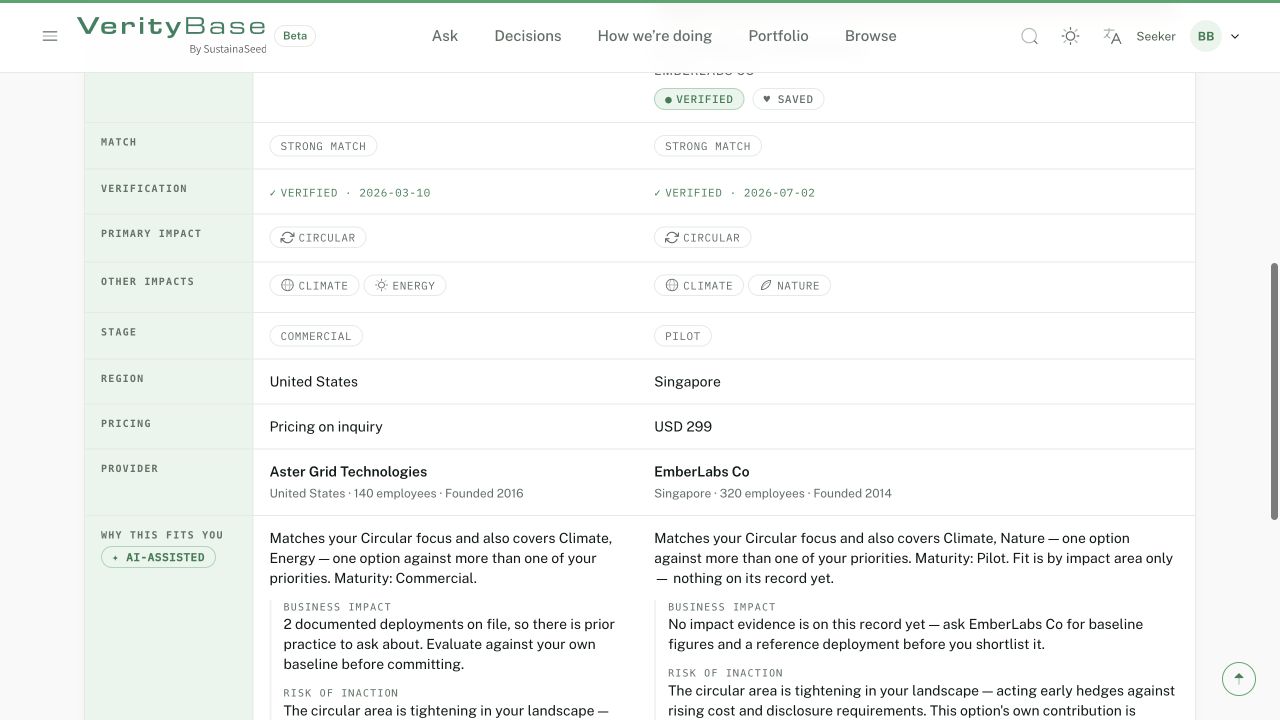
Aster Grid Technologies and EmberLabs Co differ in stage, region, price and supporting evidence.
8. Keep the project reasoning
Expand sidebar → Saved → Projects → + New project → Create project → Add note → Record decision
Open Saved → Projects, open a project and choose the new-project control. Create “Bayside — heat-pump pilot (worked example)”. Add a note to confirm capacity, winter demand, downtime and a like-for-like quote. Record “Investigate a limited pilot” with the rationale that legal and cost questions remain unresolved. This project note and project decision are separate from the structured record under Decisions; neither orders work. No teammate is invited.
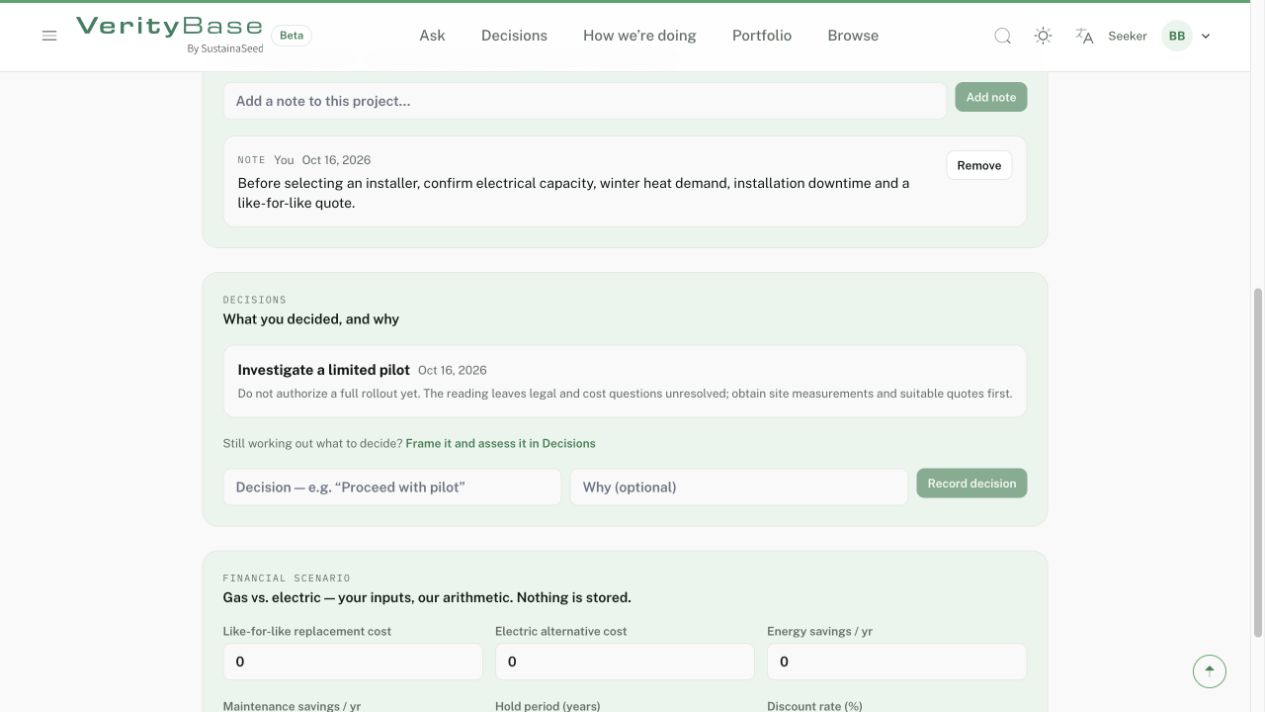
A saved note and a separate project decision preserve the pilot rationale.
9. Set a milestone
How we’re doing → Add a milestone → Save milestone
Open the progress page and add a milestone. Select the heat-pump decision with its reading; enter “Complete the heating baseline and site survey”, a target date and metric “Heating energy (kWh)”. Save and check the displayed date and status. The captured milestone is Planned. Saving a milestone moved this decision to Committed; it did not complete the survey or authorize equipment installation.
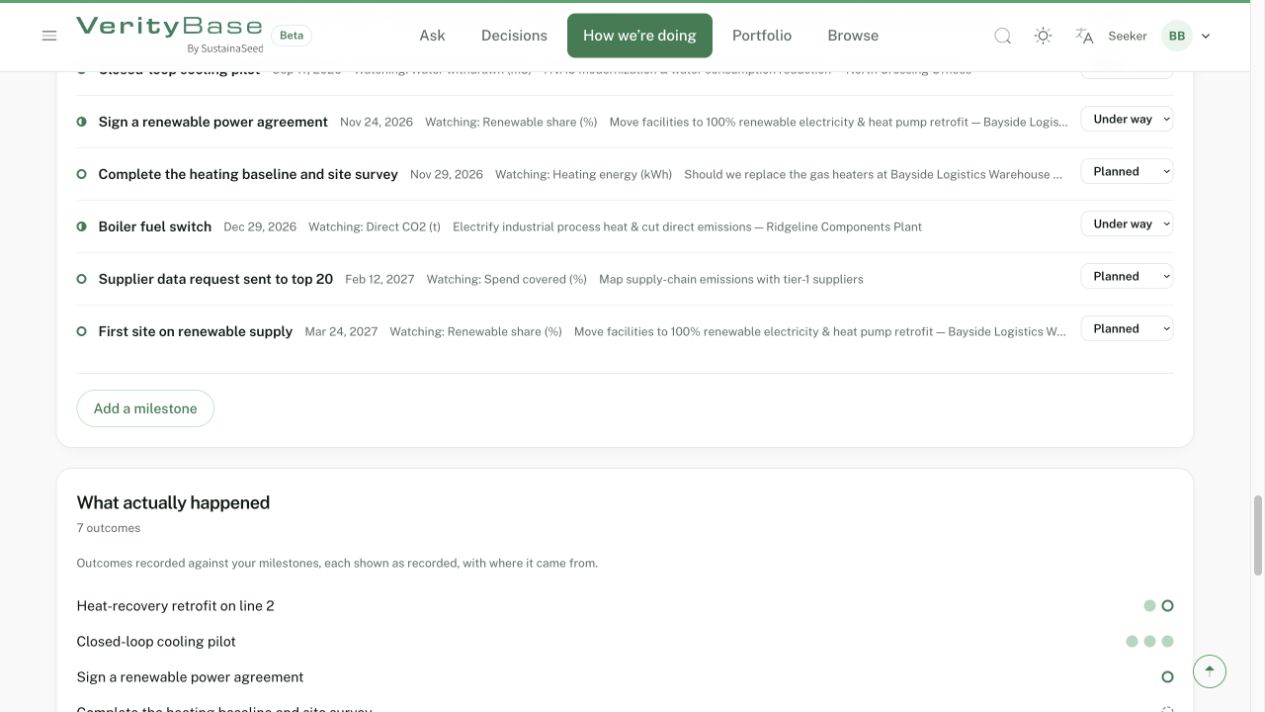
The baseline and site-survey milestone is Planned, not completed.
If the saved target date appears one day earlier than the date you entered, this is a known date-display issue. Do not change your agreed deadline to compensate; retain the intended date in a project note and report the discrepancy through support.
10. Record a baseline and continue
Record an outcome → Save outcome
Saved as reported by you. Figures from a report or measured by VerityBase are labeled as such when they arrive.
Record an outcome against that milestone: observation date 16 October 2026, metric heating energy, value 100000, unit kWh. The note explicitly says “FICTIONAL TRAINING BASELINE ONLY” and that this is example annual consumption before a pilot, not a saving. Save and confirm the row appears as reported by you. Keep the milestone planned until the work is done. Later, record comparable actual observations with period, source and operating conditions, then revisit the decision. This example ends with a documented next step, not a claim of verified savings.
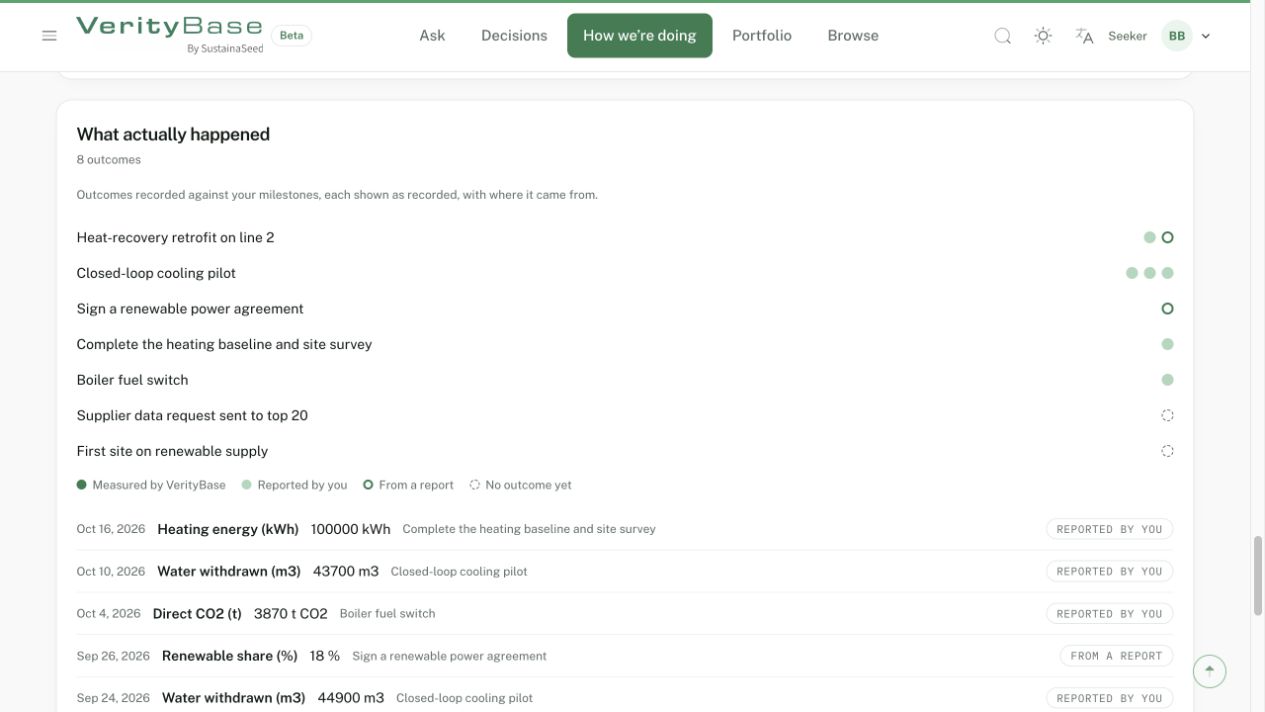
The fictional 100000 kWh baseline is labeled Reported by you, not a verified saving.