Appearance
Sign in with a passkey
While signed in, open your profile at veritybase.com/account/profile. In the passkey card choose + Add a passkey and follow your browser's device, password-manager or security-key prompts. Add another passkey if needed. Remove a lost device's key with Remove.
On the sign-in page choose Sign in with a passkey and approve using your device unlock method. The control requires enabled passkey support and a compatible browser. A canceled or failed prompt does not sign you in.
Save recovery codes in advance. Whether a passkey syncs depends on where you stored it; a device-bound key does not move automatically to a replacement device.
Visual guide: set up your account
Prepare secure access and recovery
English screen, translated caption. No account was created and no email was sent; signed-in examples use fictional demo data. A displayed form is not proof of completed authentication, verification or membership.
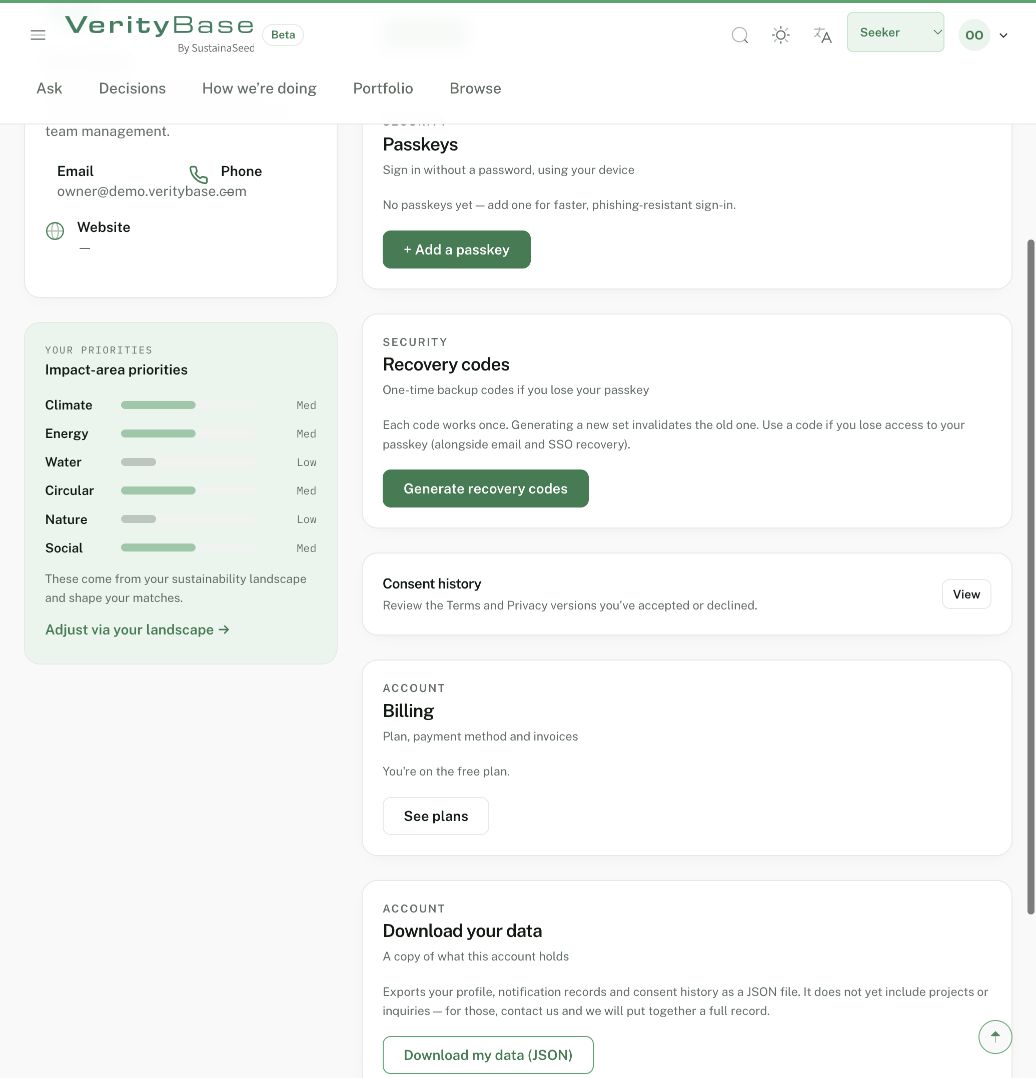
Passkey and recovery-code controls; no key or codes were generated.