Appearance
Visual guide: set up your account
Real English app screens captured on 16 October 2026, with translated instructions and captions. Public sign-in forms were inspected without creating accounts or sending email. Olivia Owner and ClearBloom are fictional local demo records. Only a harmless local profile description was saved; the existing demo memberships and checklist were already seeded. Google, email verification, passkey enrollment and invitation acceptance were not completed for these captures. Your available methods and setup requirements may differ.
Select an image to open it at full size.
1. Choose why you are joining
At the sign-in page choose Create an account. Select I'm looking for solutions to find solutions, or I want to list my company's solutions to list your company’s solutions. This records your purpose; it does not grant ownership of a company or access to another team. Buyer role and industry help personalize the experience; role is optional. The Provider choice hides those buyer fields.
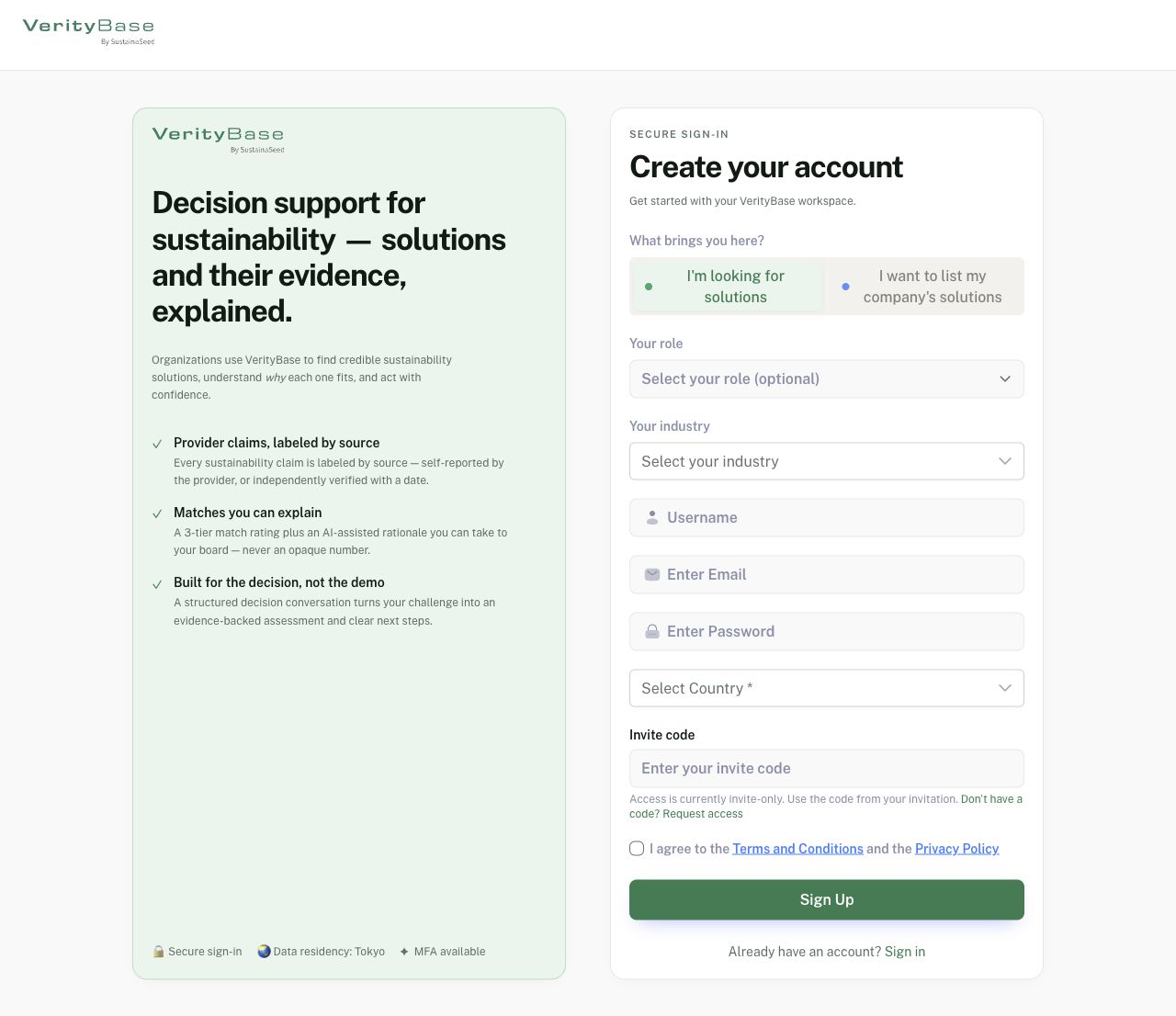
Seeker intent shows optional role and industry before personal details.
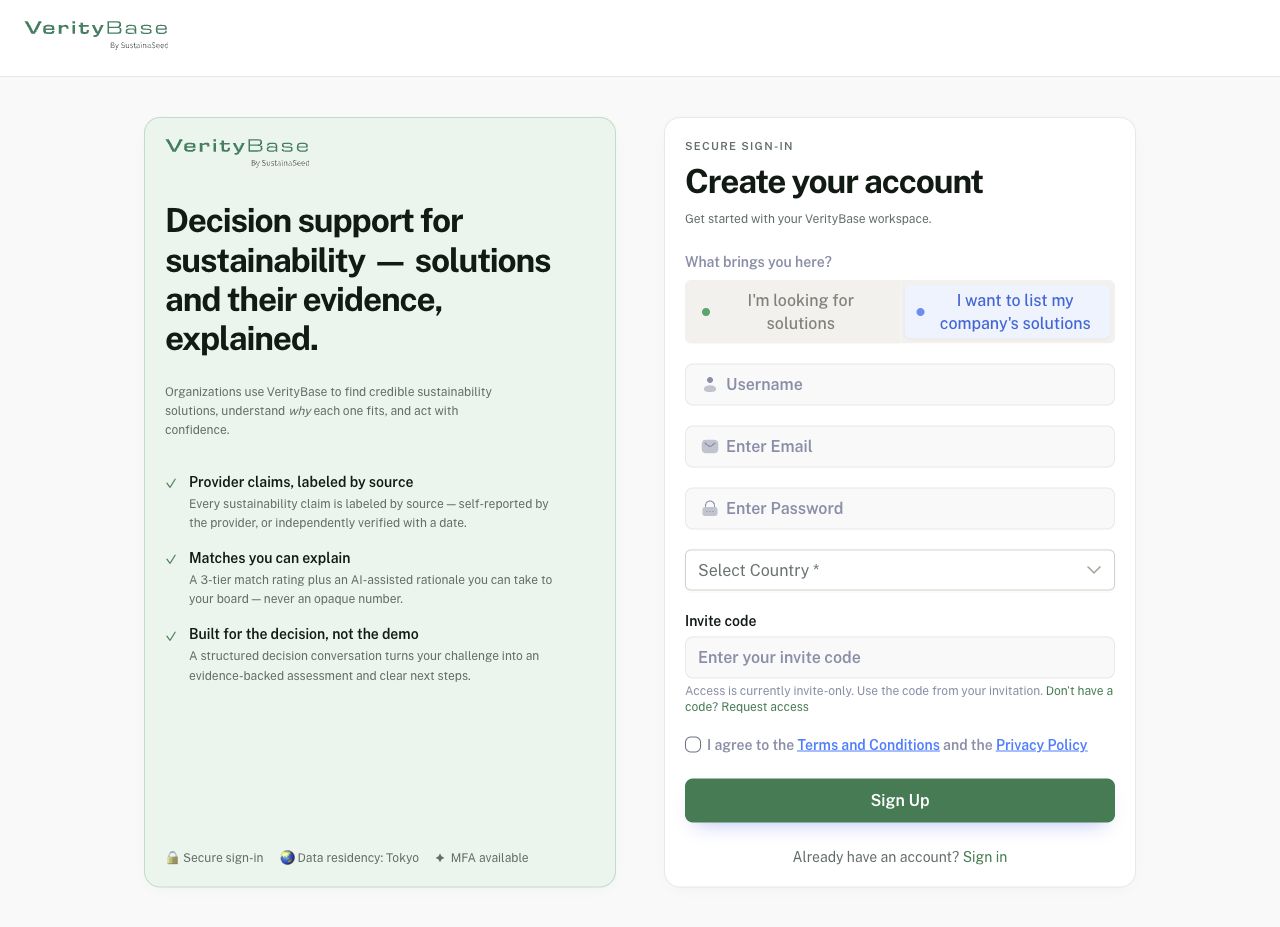
Provider intent hides the buyer role and industry fields.
2. Register or request access
Enter Username, work email and a new password, choose your country and supply Invite code when required. An access code is different from a team invitation link. Without a code, use Don't have a code? Request access, explain your organization and decision, then wait for the access response. Read the linked Terms and Privacy documents and accept only if you agree, then select Sign Up once. Complete any browser bot check yourself. If the address is already registered, sign in or reset access rather than repeat signup.
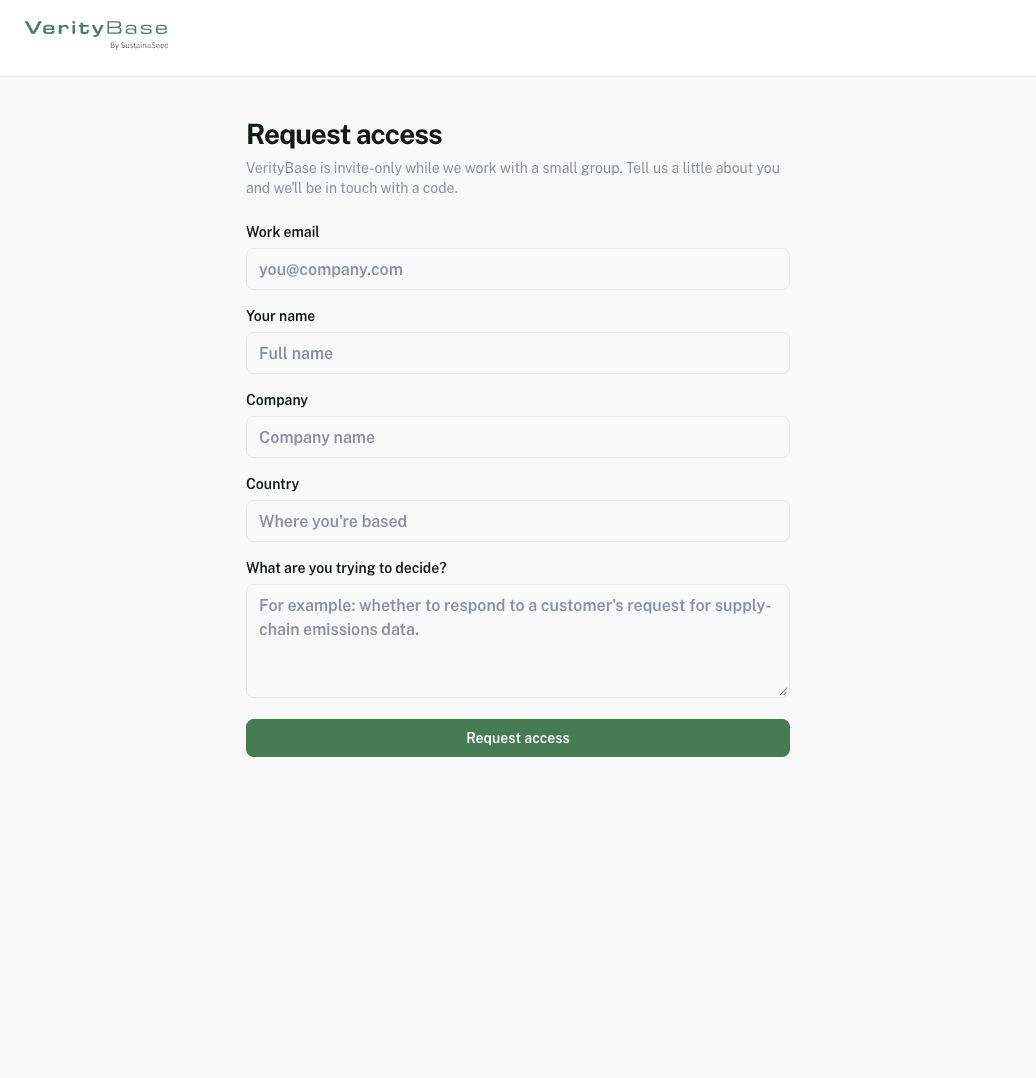
Access request form: explain your organization and intended decision.
3. Verify your email
After a password signup, open the verification email and its newest complete link. The pending page offers I've verified — continue and Resend the email. Verification must actually succeed; clicking continue alone does not verify an address. If the link expires, resend and use the latest message. Check spam and the address you entered. The screenshot shows the real pending form opened without a signup session, so its address is blank and no email was dispatched. It is not proof of successful registration or verification.
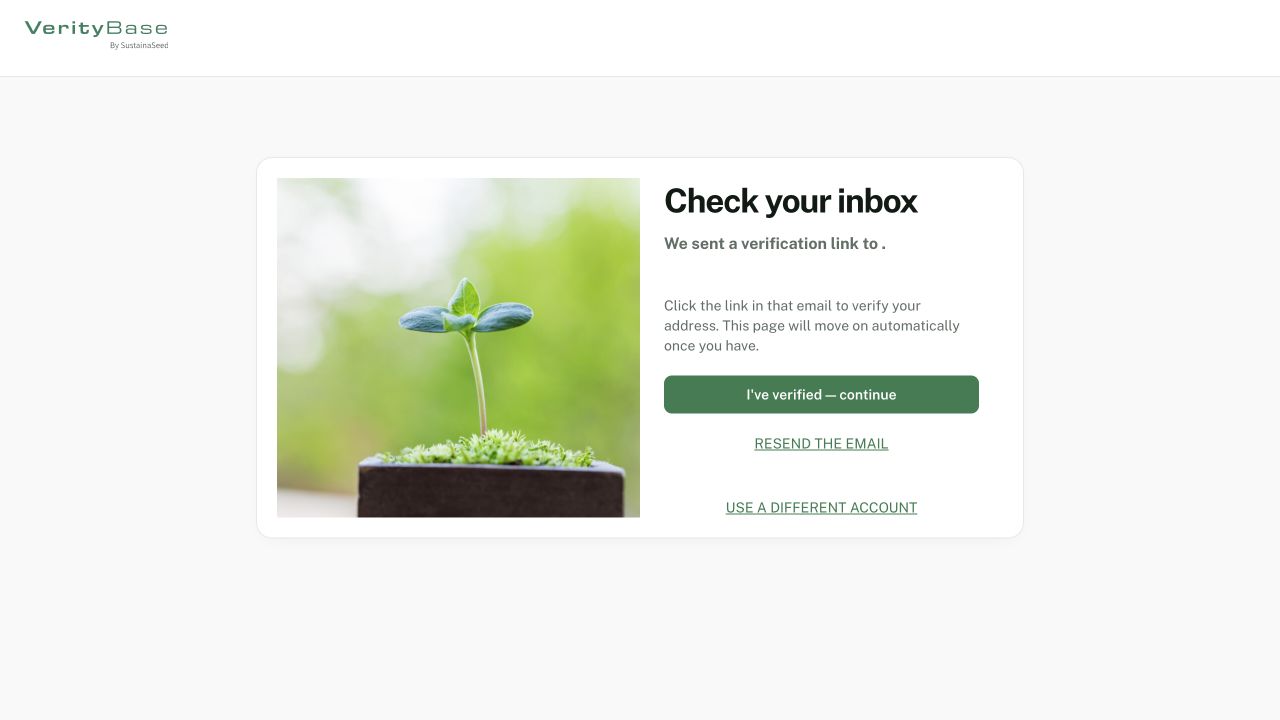
Verification controls shown without a signup session; no address or email dispatch.
4. Choose your sign-in method
For a password: enter Work email, choose Continue, enter Password and select Sign in. Use Change to correct the address. Untick Keep me signed in on a shared device. Alternatively choose Continue with Google, Email me a sign-in link or Sign in with a passkey when offered. Follow the detailed method guides below. Successful authentication leads to your workspace or required setup; it does not automatically join an unrelated organization.
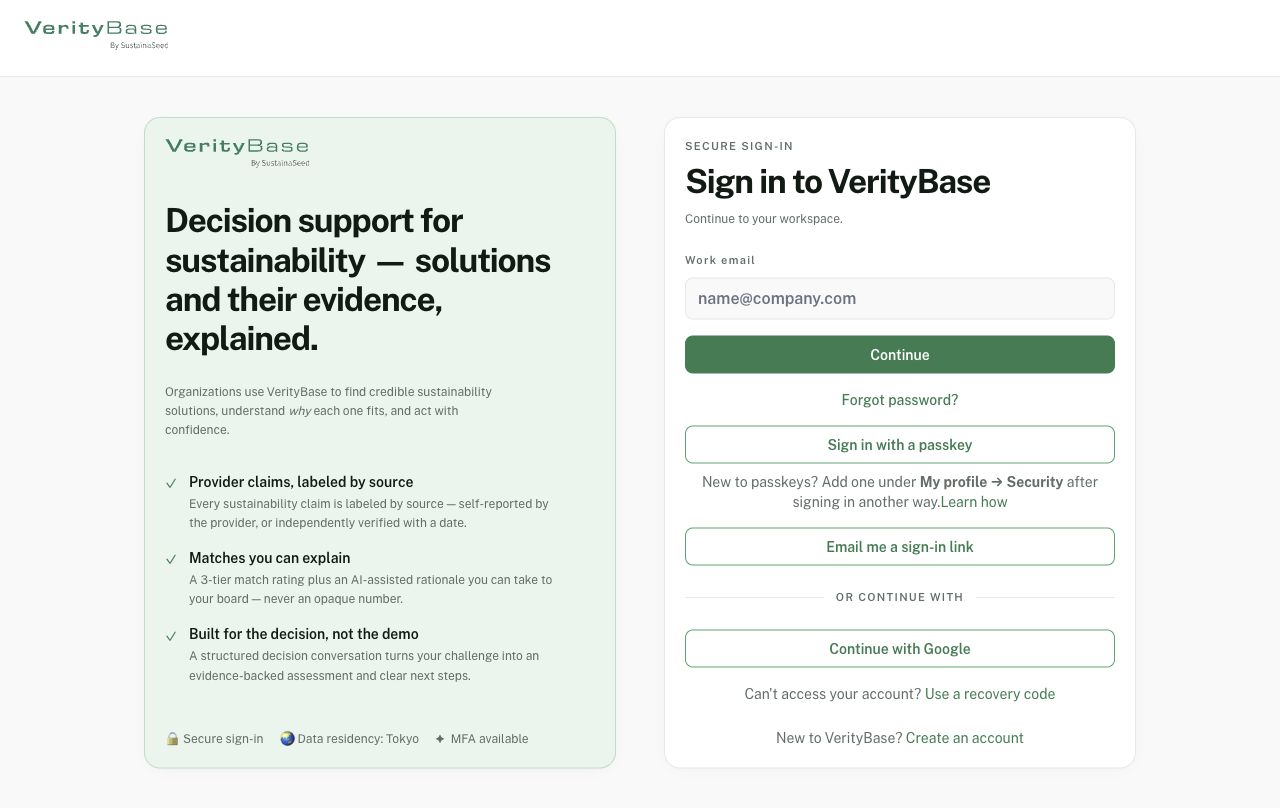
Sign-in methods offered on the released page; availability can vary.
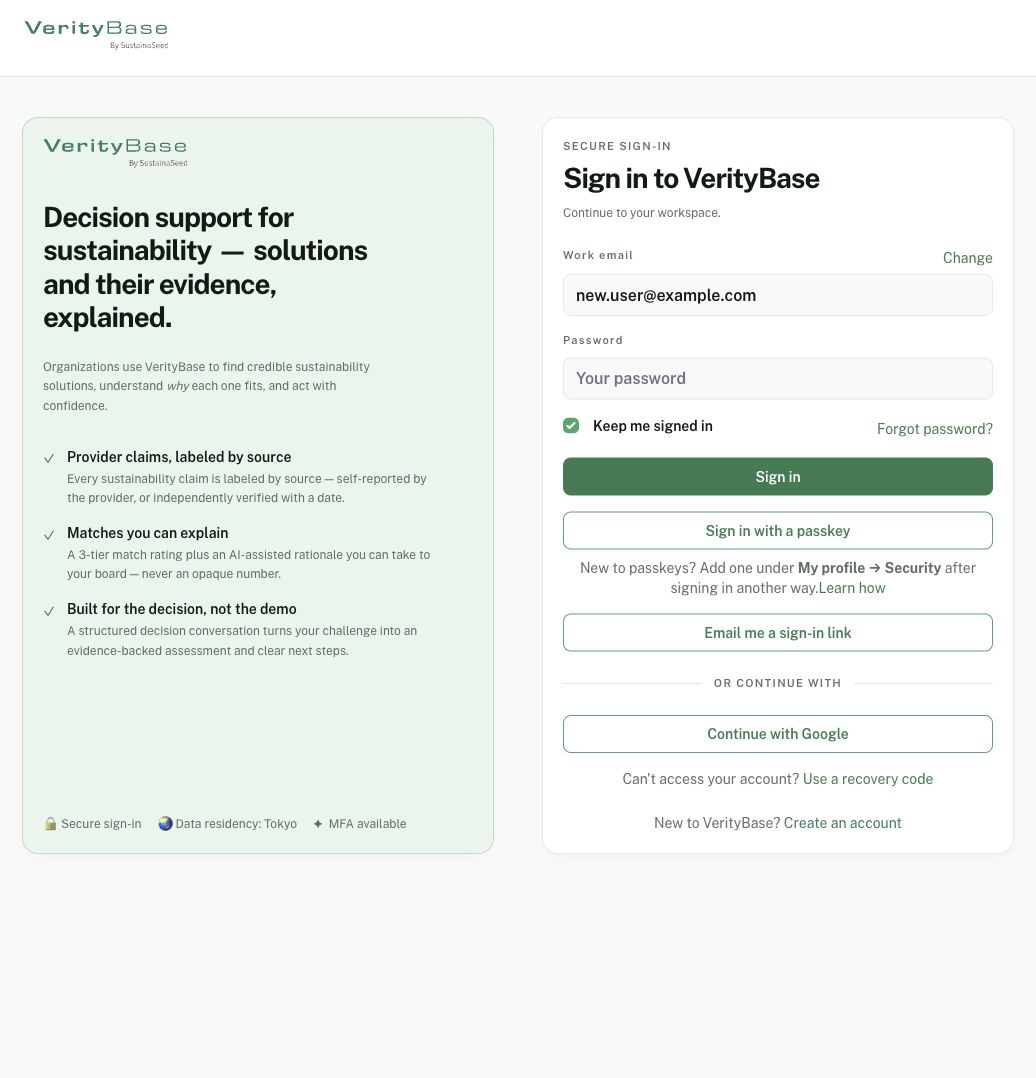
The password step uses a fictional address; the password is blank.
5. Complete your personal profile
Open the avatar/account menu, then your profile. Choose Edit profile, review personal details and select Save Changes after making changes. The email field is disabled here; do not treat profile editing as an email-change flow. Reopen the summary to confirm the saved text. In this local example, the description was changed to “Fictional training profile for customer account setup.” Profile completion is different from company verification or team permission.
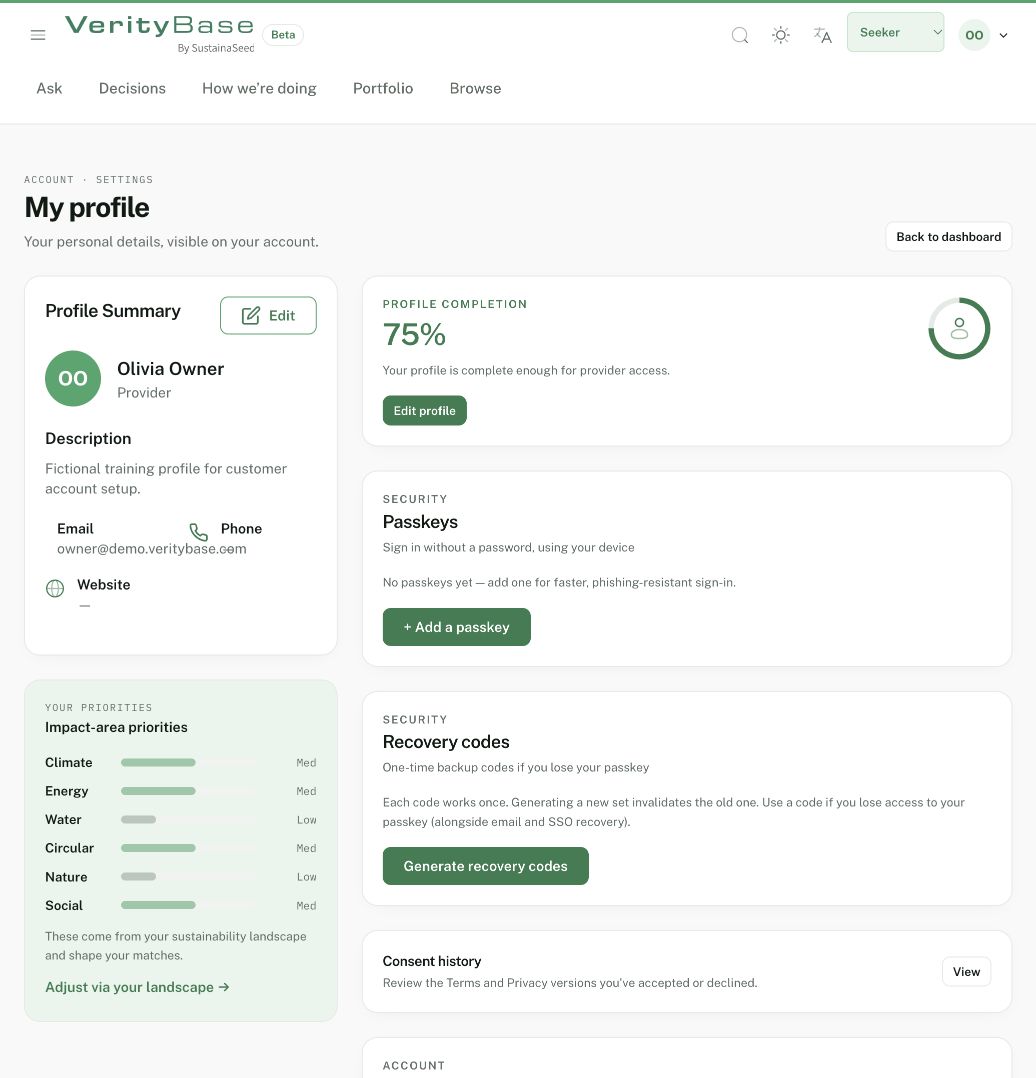
The fictional owner profile after saving the training description.
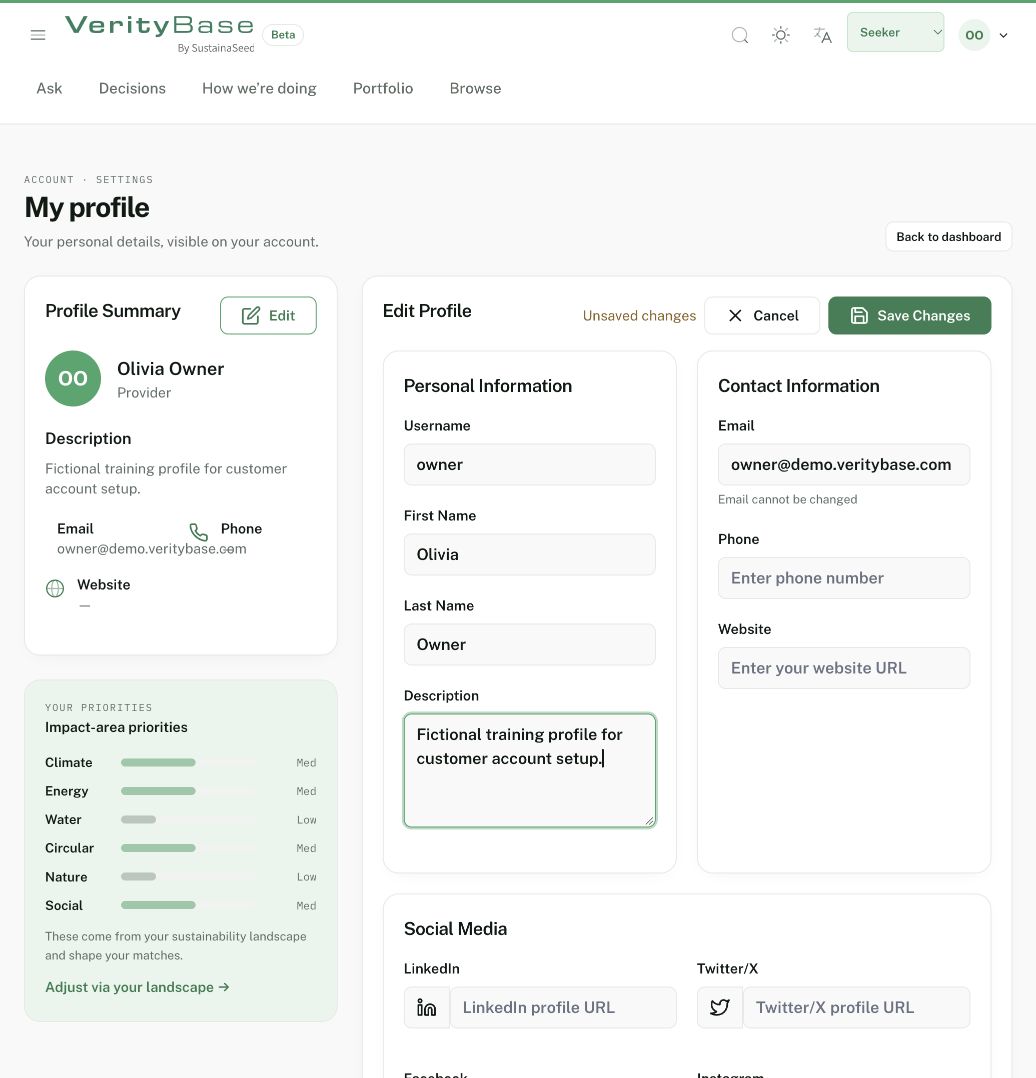
Profile editor shows unsaved training text and a disabled email field.
6. Prepare secure access and recovery
In the profile security cards, + Add a passkey starts your browser’s passkey setup. You must finish the device or password-manager prompt; a canceled prompt creates no key. Use Generate recovery codes only when you are ready to store the one-time codes securely. Regenerating invalidates the old set. These screenshots show controls only: no key, QR secret, code list or credential was created. If two-factor setup is offered, follow the authenticator steps in the account guide; availability depends on your account.
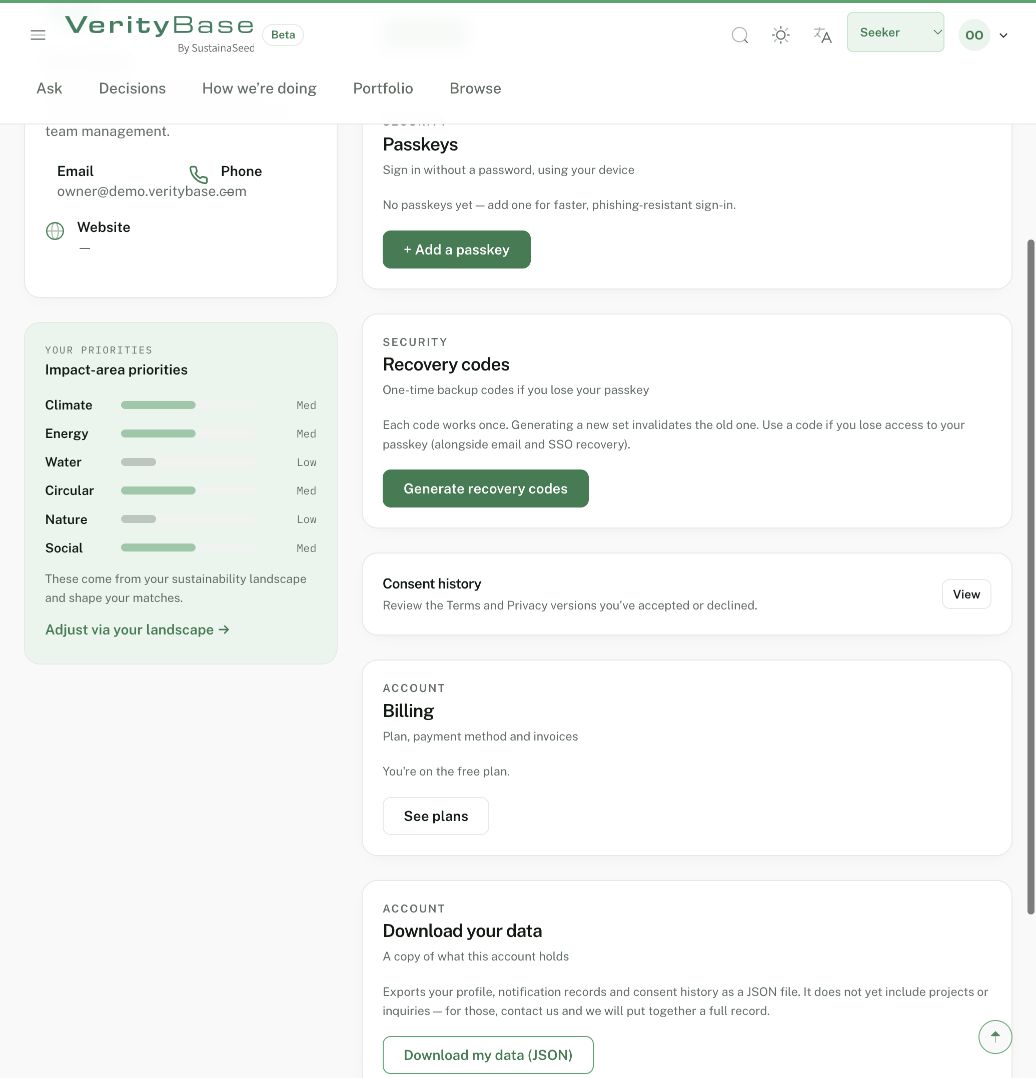
Passkey and recovery-code controls; no key or codes were generated.
7. Start as a Seeker
Choose the Seeker workspace when it is available and open Ask. Describe a real decision in plain language, then submit and answer the follow-up questions. Our screenshot stops at the empty composer. For the full question-to-project journey, follow the warehouse worked example. Company-profile suggestions from a website must be reviewed and explicitly confirmed before they become saved facts; they are not independently verified.
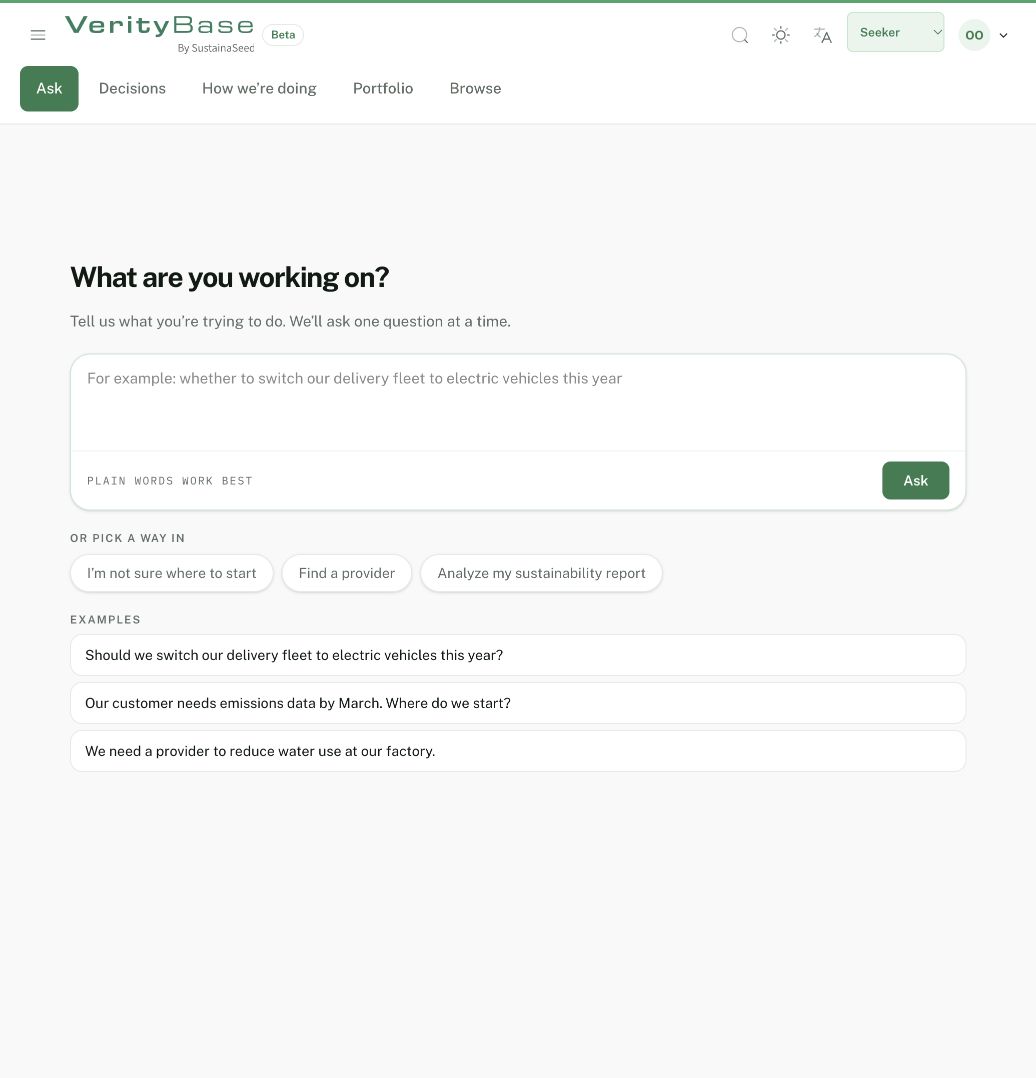
The first-question composer is empty; no decision was submitted.
8. Finish Provider company setup
Open the Provider setup checklist. Complete the profile to the threshold shown, then use Unlock provider access when eligible. Create your own company using Create your company, or choose Claim an existing company only for a company you are authorized to represent. A pending claim is not ownership. The captured checklist belongs to an existing demo owner with all four steps already complete, not a newly created account. In the company editor use Save profile for profile changes; country, category and company size are fixed from setup in this editor. Location edits save separately. Do not publish unsupported claims.
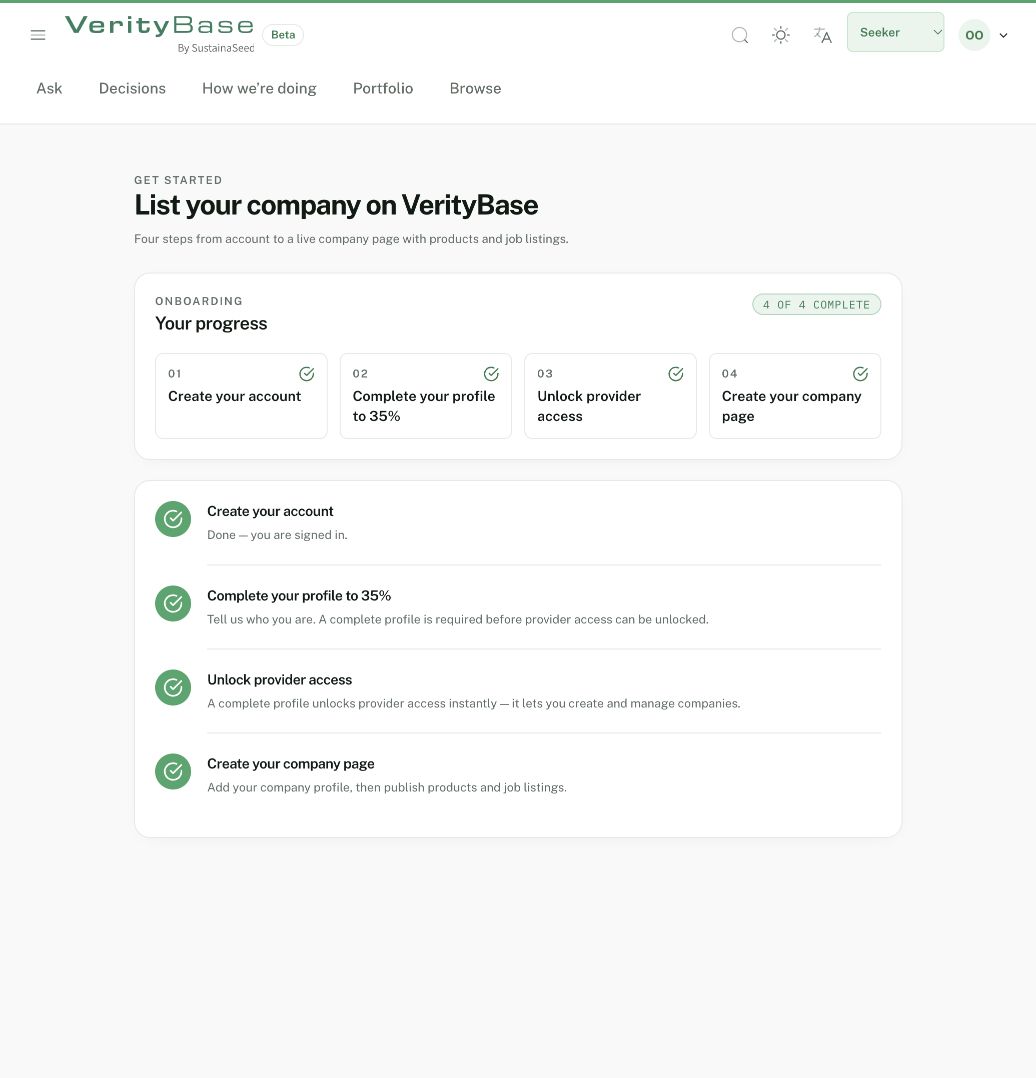
An existing demo owner has all four Provider steps complete; this is seeded history.
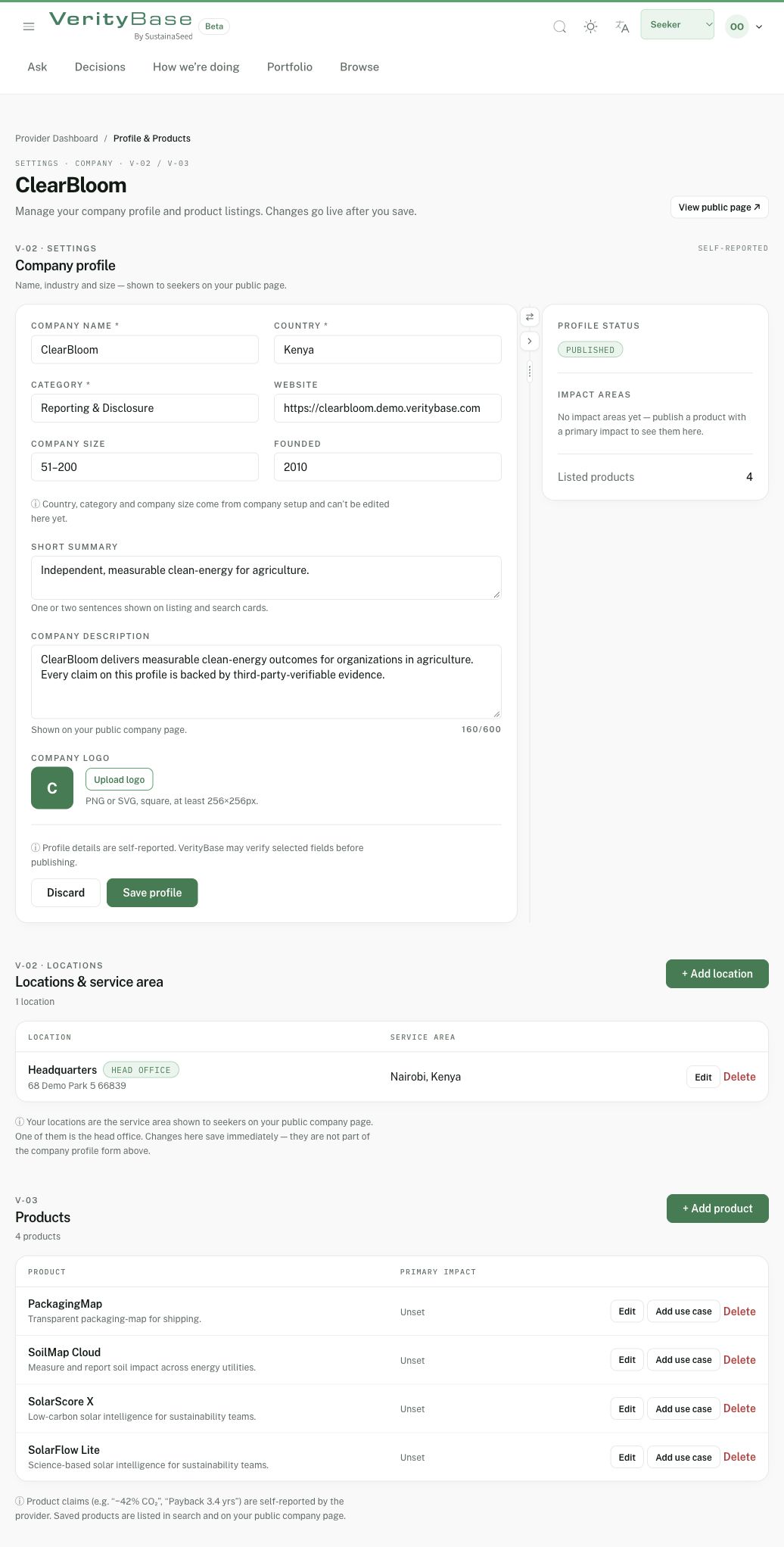
Fictional company editor: public self-reported fields and separate save controls.
9. Join the right organization
Open Organization from the account menu and check whether you are viewing buyer-workspace or Provider-company access. Owners can invite the intended address with an allowed role and must check the result. For an incoming invitation, open the complete email link, confirm workspace, invited address and role, then choose Accept invitation only for the expected team. Use the invited account if sign-in is required. We did not send or accept any invitation. The error screenshot deliberately opens a link with no token; ask the owner to resend an expired or incomplete link. Project access remains a separate check.
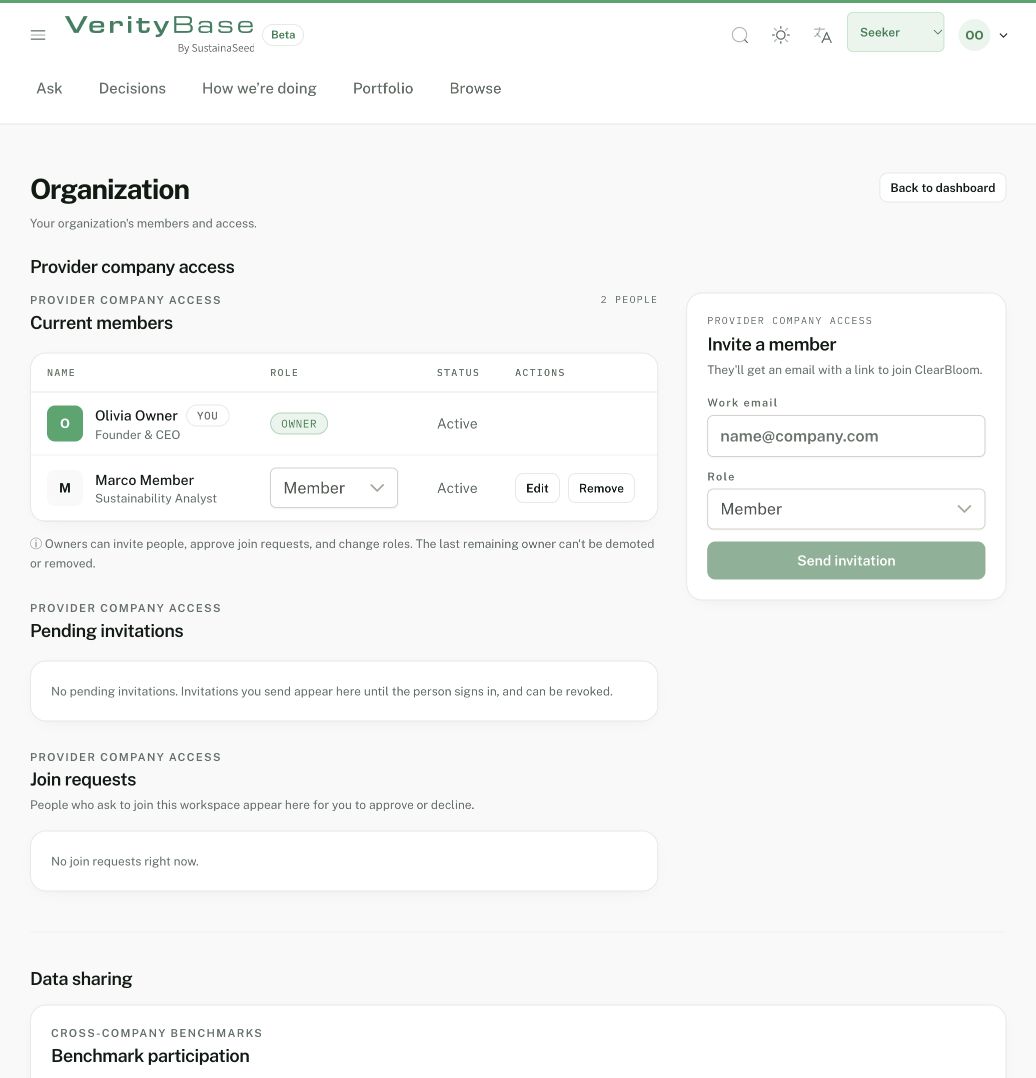
Synthetic company membership is separate from the account’s Seeker view.
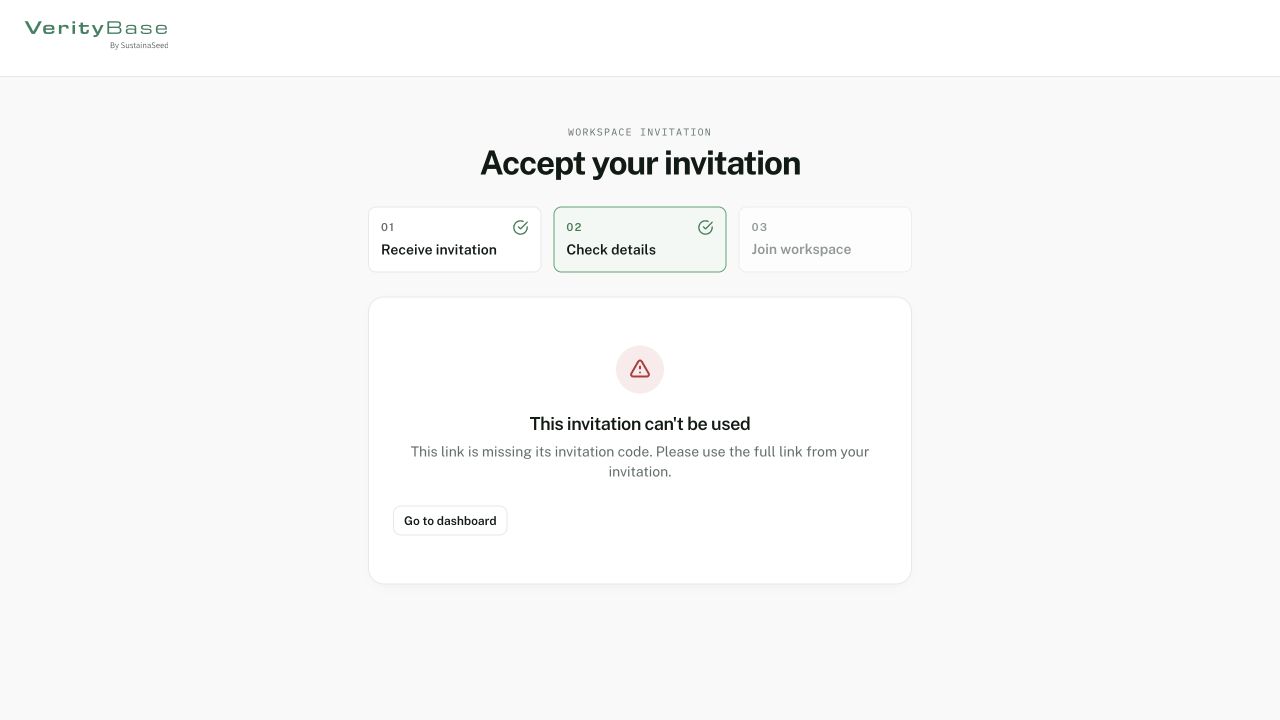
An incomplete invitation link shows an error rather than membership.
10. Resolve a blocked step
For forgotten credentials use Forgot password? and Send reset link, then open the newest reset email and set the password yourself. For a prepared backup use Use a recovery code with an unused code; each code works once. Never send a password, recovery code or complete sign-in link to support. An invalid password, missing email, unavailable method and lack of workspace access are different problems. Use the matching guide below, and contact support if the displayed error persists.
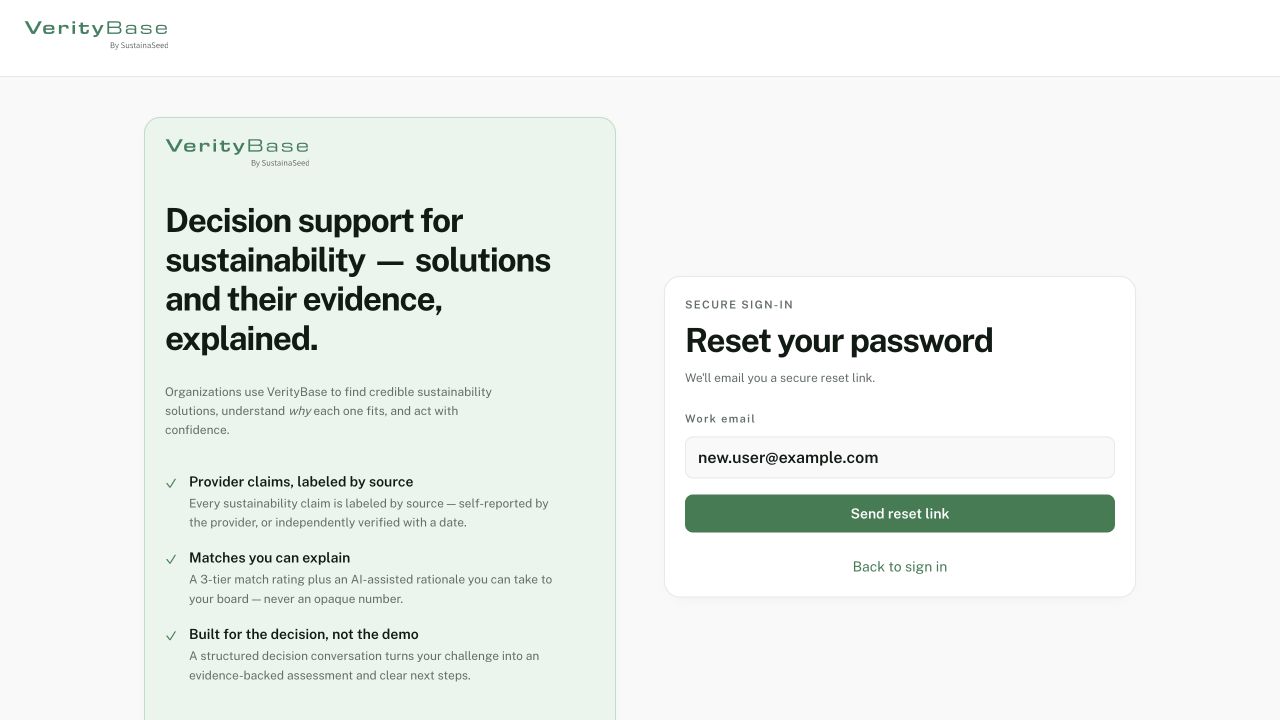
Reset request form before any email is sent.
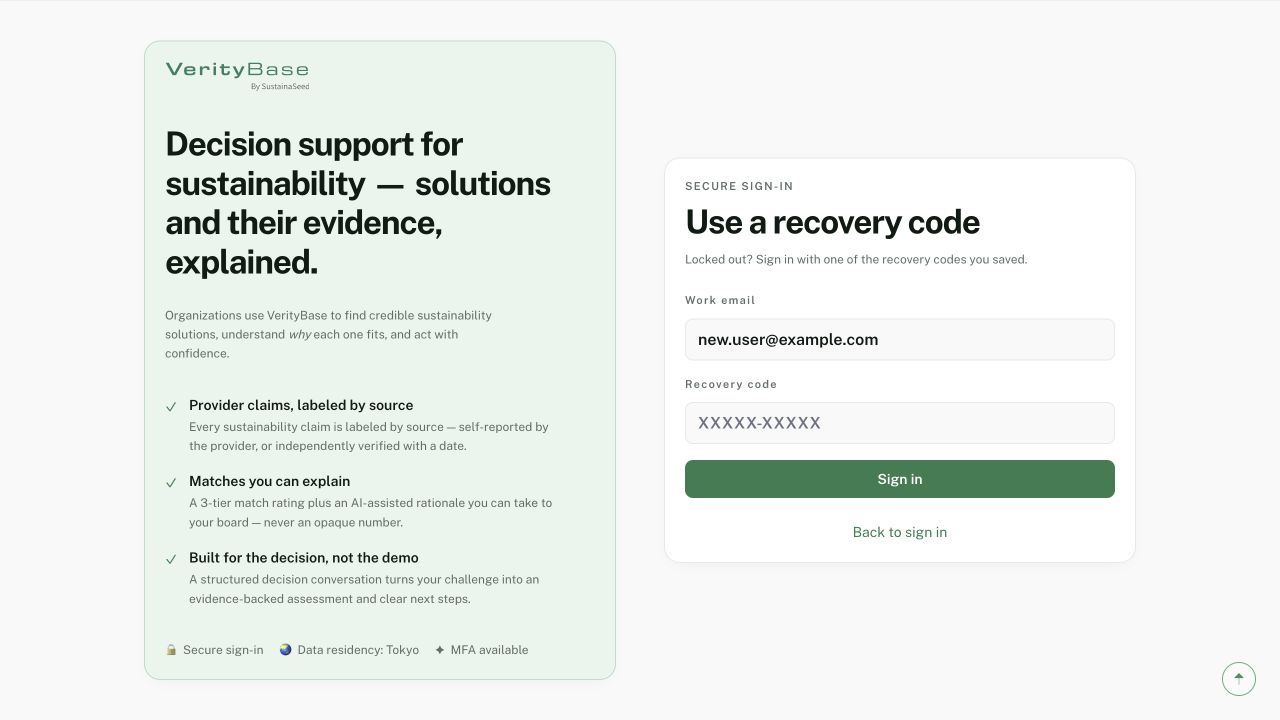
Recovery-code form with no code entered.